A contact form in WordPress gives visitors a way to reach you without opening their email app, and it puts every message in one tidy list. This guide is ideal for beginners. We walk through five steps, from choosing the fields to stopping spam, and the whole job takes about 10 minutes with a free plugin.
The short version
- Start from a contact template instead of a blank form.
- Ask for three things: a name, an email address and the message.
- Put the form on a page with a block, a shortcode or an Elementor widget.
- Send yourself an email for every entry, and send the visitor a short reply.
- Switch on the hidden spam check before the form goes live.
Why use a contact form instead of an email link?
Because a form keeps your address away from bots that scrape pages for emails, and it asks for what you need in one go. A plain email link opens a mail app that many people never set up on a work laptop or a shared computer. A form works in any browser and on any phone.
There is a second reason. Every message lands in the same place, with the date, the page it came from and the answers laid out the same way. That makes it easy to answer within 24 hours, which is what most people expect from a business.
What should a contact form ask for?
Ask for a name, an email address and the message. That is enough for almost every business, and a short form takes about 1 minute to fill in, so it gets more replies than a long one. Add a field only when you know what you will do with the answer.
Here is a simple way to decide:
| Field | Why you ask | Required? |
|---|---|---|
| Name | So you can greet them properly | Yes |
| So you can reply | Yes | |
| Message | So you know what they need | Yes |
| Phone | Only if you plan to call back | No |
| Topic dropdown | Sends the email to the right person | Optional |
The W3C forms tutorial adds one more rule worth keeping: every field needs a visible label, not just grey text inside the box that disappears as soon as someone types.
How to create a contact form in WordPress, step by step
You need a form plugin, because WordPress does not include one. We use Echo Forms here because the free plugin covers everything a contact form needs, but the same five steps work in most builders.
Step 1: Install a form plugin
Download Echo Forms from the Echo Forms page, then in WordPress go to Plugins, Add New and Upload Plugin. Choose the zip file, install it and press Activate. A new Echo Forms menu appears on the left.
Step 2: Start from a contact template
Go to Echo Forms, Add new and pick Start from a template. Choose Quick Contact. You get a name field, an email field and a message box, already laid out, instead of an empty page. You can try the Quick Contact template before you install anything.
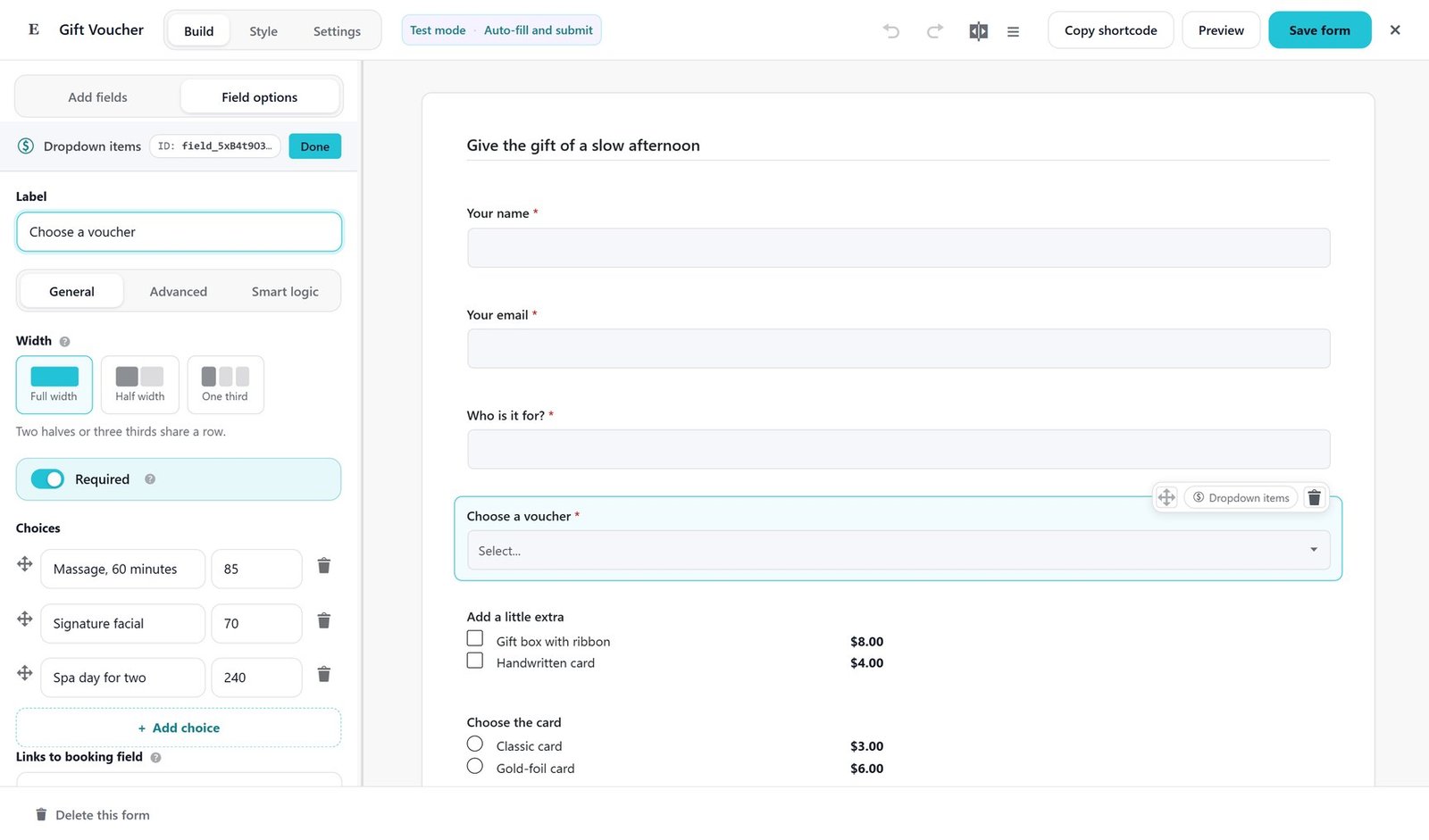
Step 3: Change the words
Click any field to rename it. Change the button from Submit to something friendlier, such as Send message. Then open Settings and write the message people see after they press the button, for example: Thanks, we got it. Expect a reply within one working day.
Step 4: Set up the emails
Open the form’s notifications and check the Send to address. It should be an inbox someone reads every day. The guide to emails for each entry shows every option, including copies to a colleague.
Step 5: Put the form on a page
Create a page called Contact, then add the form one of three ways:
- The Echo Form block in the WordPress editor.
- The shortcode, such as
- The Echo Form widget in Elementor.
The guide to putting a form on your site covers each one, plus a QR code for a printed flyer.
Which emails should a contact form send?
Two. One goes to you with every answer filled in, and one goes to the person who wrote, so they know the message arrived. The second email stops the “did it work?” follow-ups that fill your inbox when people hear nothing back.
In Echo Forms, the reply to the visitor uses a merge tag such as {field:email} in Send to, so each entry emails whatever address that person typed. Keep the reply short: a thank-you, when they can expect an answer and a way to reach you if it is urgent.
How do you stop contact form spam?
Switch on the hidden check first. It adds a field people never see, which bots fill in, and a timer that drops any form sent within 3 seconds of loading. Most spam stops there, and real visitors never notice anything.
If some still gets through, add more in this order:
- A math question, such as “What is 3 plus 4?”, which takes a person 2 seconds.
- Google reCAPTCHA or hCaptcha, which need a free key from Google or hCaptcha.
- A block list of words, emails or addresses you never want to hear from again.
The spam protection guide explains each setting. Start with the lightest check, because every extra step costs you a few genuine messages too.
Where should the contact form go?
Give it a Contact page of its own and link to that page from your menu and your footer, so people find it in the same place on every page. Put your opening hours and other ways to reach you beside the form, which helps the people who would rather call.
You can also open the same form as a popup from a button, which suits a “Questions? Ask us” link on a pricing page. See popup forms for how that works.
What mistakes should you avoid?
Most contact forms fail for the same few reasons:
- Too many required fields. Every extra box loses replies. Keep it to three or four.
- No confirmation. If nothing changes after the click, people press the button again.
- The wrong inbox. Notifications to an address nobody checks look like a broken form.
- No phone test. Plenty of people will find you on a phone, so fill the form in on yours before you share it.
- No privacy note. If you ask for personal details, say what you do with them, and how long you keep them. Echo can clear raw submissions after 90 days. The GDPR overview explains the rules if you have visitors in Europe.
Do you need a paid plugin for a contact form?
No. A contact form needs fields, an email for each entry and spam protection, and the free version of Echo Forms has all three, with no limit on forms or entries. You only need Signature for extras such as quizzes, form workflows and conversational forms, from $49.99 a year for one site.
Once your form is live, send yourself a test message, check that both emails arrive within 5 minutes, and reply to it. That test takes 2 minutes and tells you more than any setting.
Build your contact form tonight
Echo Forms is free, with a Quick Contact template, spam protection and email notifications, and no limit on forms or entries.