
A notification is an email sent when someone sends a form. A form can have as many as you need: one to you, one to a colleague, a copy to the person who filled it in.
Every new form starts with one email, Email me each entry, to the site’s admin address. Add notification adds a thanks email to the person who filled it in, ready to change.
A form's notifications
Open a form, then Settings > Notifications and actions. Each email is a row with a switch to turn it on or off, who it goes to, and Edit 1. Add notification 2 adds another, already set up as a thanks email to the person who filled the form in.

The tab shows once a form has been saved for the first time.
Who it goes to and from
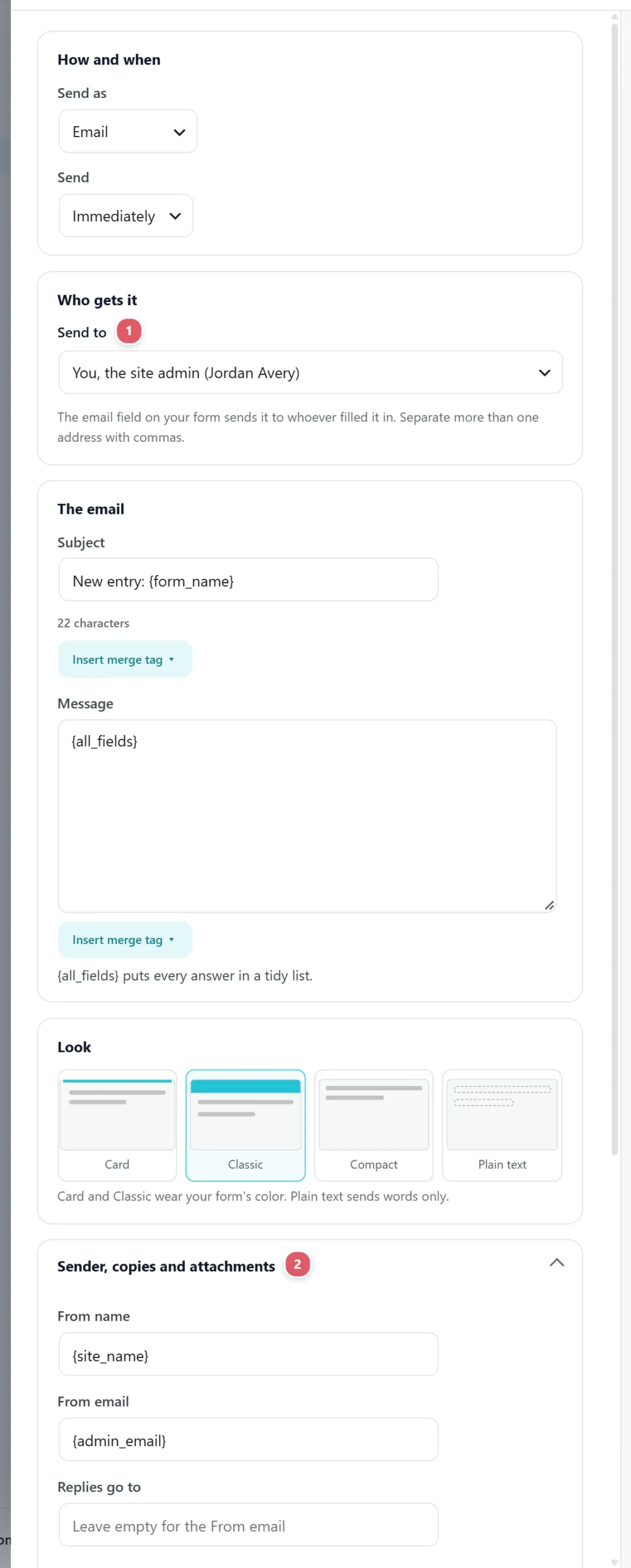
Press Edit on a notification and it slides open: the settings on the left, the email as it arrives on the right. The numbers match the picture.
Notification name
Notification name, the title at the top of the panel, is only for you, so you can tell several emails apart at a glance: Admin alert, Thanks to the customer, Sales team. Nobody receiving the email sees it.
Send to
Send to 1, under Who gets it, lists who this email can go to:
- Whoever filled it in, once for each email field on the form, such as Whoever filled it in (Email). Each entry is then emailed to the address that person typed. A new email field shows up in the list as soon as you add it to the form.
- You, the site admin, the site’s admin email address.
- Someone else: type an address, then type one or more addresses, separated by commas.
For a separate message to the customer, with its own subject and words, add a second notification rather than putting two addresses in one.
CC and BCC
Open Sender, copies and attachments 2. CC copies more people in, and everyone sees who else got it. BCC copies them in without showing their address to anyone else, which suits a manager who wants to see every entry quietly. Both take addresses separated by commas, and merge tags.
From name and From email
From name and From email, in the same group, are who the email appears to come from in the inbox: Bright Smiles Dental, hello@brightsmiles.com.
Use an address on your own website’s domain. Mail services check that the sending server is allowed to send for that domain, and an email claiming to be from a Gmail or Outlook address while coming from your website is the first thing they send to spam.
Replies go to
Replies go to is where a reply lands when someone presses Reply on this email. Leave it empty to use the From email.
For the email you receive, set it to the person’s own address with Insert merge tag ({field:email}). Then pressing Reply answers the customer directly, instead of writing back to your own website.
Email from WordPress often lands in spam or never arrives. Spout SMTP sends it through a real mail service and logs every message.
What it says
What the email says and looks like, with the email itself beside it. The numbers match the picture.

Subject
Subject 1 is the email’s subject line. Merge tags work here too, which makes an inbox easy to scan: New booking from {field:name} or Quote request: {field:service}. For a copy to the customer, say what it is: We got your request, {field:name}.
Message
Message 2 is the email itself. Write it like any email, and press Insert merge tag wherever an answer should go. The tags start with this form’s own answers:
Hi {field:name},

Thanks for asking about {field:service}. Here is what you sent us:

{all_fields}

We will reply within one working day.
{all_fields} puts every answer in a tidy list, the quickest way to get everything in one email. The tags you can use are in the table below.
Look
Look 3 is the email’s design:
- Card: your message on a white card with a band of your form’s color across the top, and the site and form named above it.
- Classic: a colored band at the top in your form’s color, like a letterhead.
- Compact: the same message without the band, for something lighter.
- Plain text: no design at all, just words. It looks like an email typed by hand, and some business mail systems prefer it.
See it, and try it on yourself
The right side 4 shows the email as it arrives, filled in with example answers from this form, and changes as you type. Send me a test 5 under it emails this version to your own address, with Test: before the subject, so you can see it in a real inbox before any entry comes in.
Attachments
Under Sender, copies and attachments, two ways to send a file with every email from this notification:
- Attach a spreadsheet of this entry: a CSV of this one entry’s answers, which opens in Excel or Google Sheets. Handy for forwarding to someone who works in spreadsheets.
- Add a file: a file from your Media Library, such as a price list, a menu or a welcome pack, sent every time.
Files people upload on the form are not attached to the email; they stay safely on your site, linked from the entry.
Merge tags
| Merge tag | What it becomes |
|---|---|
{site_name} | This site’s name |
{admin_email} | This site’s admin email address |
{form_name} | This form’s title |
{all_fields} | Every submitted field, as a label: value list |
| Under This form’s answers | One answer each, such as {field:email} |
Send it only when an answer matches
Only send this when sends this notification only for entries whose answer matches. Left on Always, it sends for every entry.
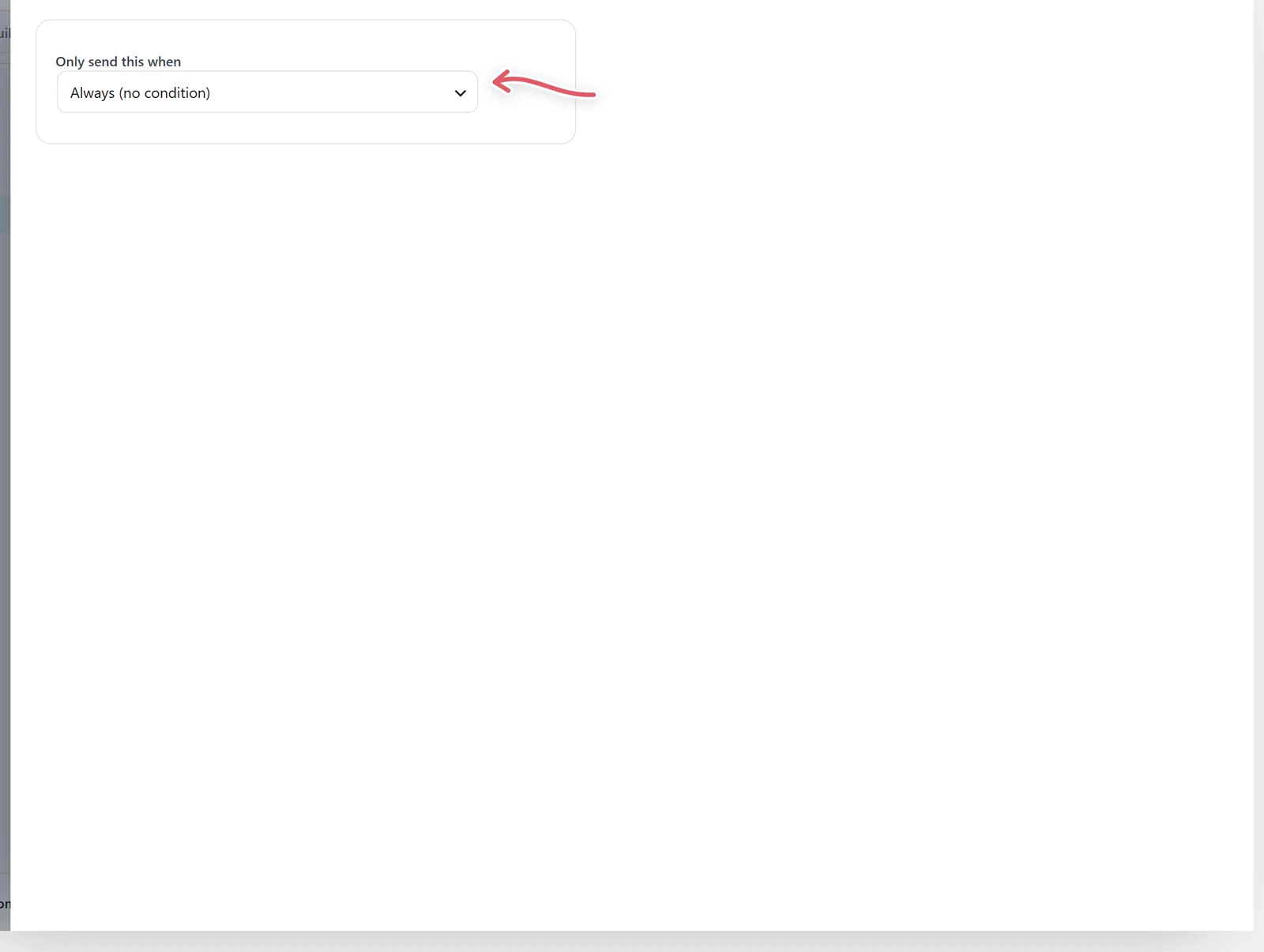
The classic use is one form that reaches the right person. Say your contact form asks Which department? with Sales, Support and Billing:
- Edit the first notification. Set Send to to
sales@yourbusiness.com, then Only send this when: Which department? is Sales. - Add a second notification to
support@yourbusiness.com, with Only send this when: Which department? is Support. - Add a third for Billing the same way.
Each entry now goes to one team only. The same tests as Smart logic are offered: is, is not, contains, is empty, is not empty. An entry that matches none of them sends none of these, so keep one notification on Always if you want every entry in your own inbox too.
Sending by answer, sending later, texting, edit links and approval come with Echo Forms Signature. A notification that uses them is held, not lost, while the add-on is off. It says This one texts, waits or checks an answer before it sends, which comes with Echo Forms Signature. It is held until that is back.
Send it later, or as a text
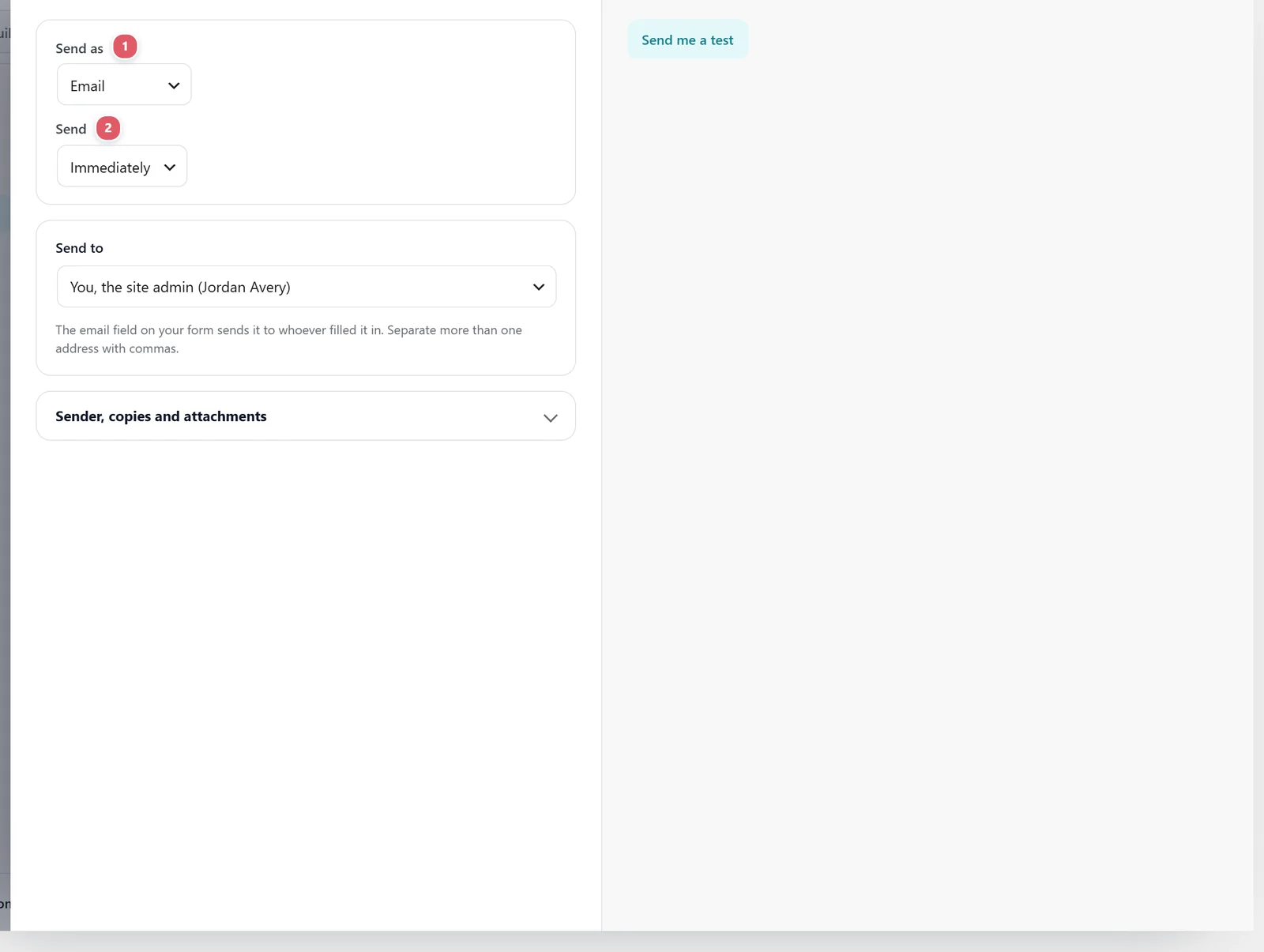
- Send as 1: Email or Text message. A text is plain words: no subject, styling or attachments. Send it to a number like
+15551234567, or a merge tag that holds one. Texts need a provider connected under Connections first. - Send 2: Immediately, or After a delay of minutes, hours or days after the entry comes in. A delay turns a receipt into a follow-up: an email an hour later asking Did you find everything you needed?, or a text the next morning. The entry is saved straight away either way; only this one message waits.
Let people edit what they sent
Switch on Let visitors edit entries and the form gains an {edit_link} merge tag. Put it in a notification to the person, or in the thank-you message. The link reopens the form filled in with their answers (You are editing your previous submission. Saving below updates it in place.), and pressing Update submission changes their entry rather than making a new one.

Hold emails until you approve
On a site with Pulse Bookings, a booking form can Hold emails for approval. Each entry still becomes a booking straight away, which staff can see and change, but its emails wait until someone approves the booking from Pulse’s Bookings list. Useful when a booking should be checked before the person is told it is confirmed.
Booking forms and Pulse Bookings
On a site with Pulse Bookings, a form that makes a booking can use Pulse’s own booking emails instead: switch on Use Pulse Bookings’ emails. Only do that if the form has its own email template on Pulse’s Email Settings screen, or it sends no email at all. See With Pulse Bookings and ReefCRM.
For every form at once
Two settings under Site-wide settings change how every form’s emails go:
- Send emails in the background sends them a little later, so the person sees the thank-you message straight away instead of waiting for the emails.
- Entry summary emails sends one email a day or a week listing how many new entries each form had. Nothing is sent when there were none.
Support comes with Signature: in Echo Forms, open Help & feedback and tell us what you were doing, and the people who build it answer, seven days a week. Get Signature