
Fields where people pick rather than type. Their answers are the easiest to count, which is why survey results and polls are built on them.
Dropdown, multiple choice and checkboxes
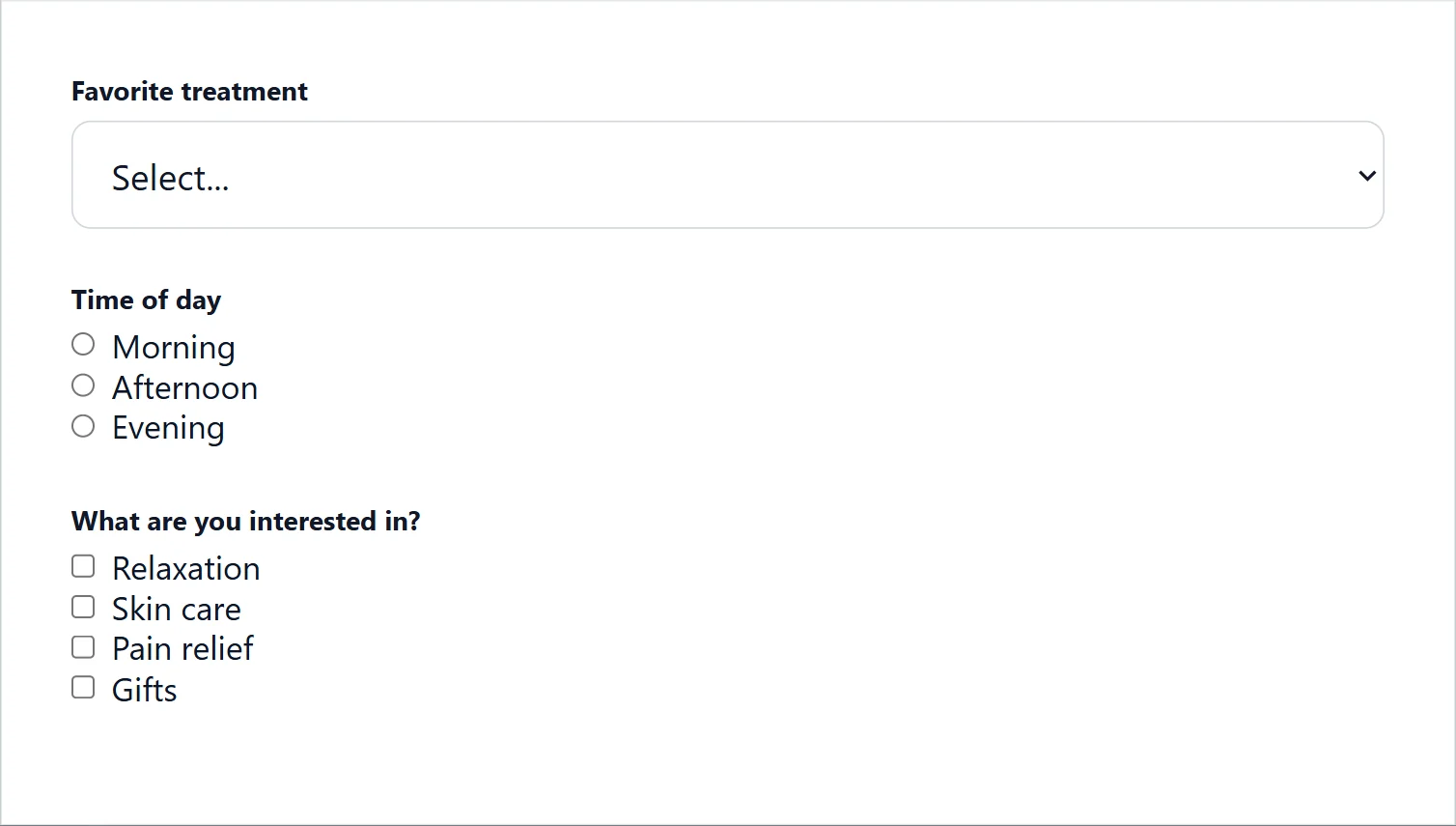
- Dropdown: one choice from a list that opens.
- Multiple choice: one choice, every option on show.
- Checkboxes: as many choices as they like.
Their Choices are on the field’s General options: Add choice, type each Choice label, drag to reorder, and the bin to remove one. Choice layout sets One column (stacked), Two columns, Three columns or Inline (side by side).
Choices as cards with icons or pictures
Choice style turns a multiple choice or checkboxes field from Plain text into Styled cards: each choice its own card, with an Icon or an Image and an Optional description. People tap what they see instead of reading a list, which is faster on a phone and makes a quiz or a product picker feel like an app. For example, Which room are you redecorating? with a photo of a kitchen, a bedroom and a living room.
To set it up:
- Click a Multiple choice or Checkboxes field and set Choice style to Styled cards.
- Beside each choice, pick an Icon or upload an Image, and add an Optional description if a word or two helps.
- Adjust the cards with the settings below, and check them with Preview.
| Setting | What it does |
|---|---|
| Cards per row | A number, or Auto (fit as many as possible). Three across stays three across on a phone. |
| Icon/image position and Icon/image size | Top, left, right or bottom of the card, and how big. |
| Full-card images | A picture card with no frame. |
| Hide choice text | For pictures that speak for themselves. |
| Show the checkbox | Shows the tick or dot as well as the card. |
| Border width, Corner radius, Padding (inside each card), Gap (space between cards) | The card’s shape and spacing. |
Each card has colors for Default, On hover and Selected.
Choices from your site
Choices source fills a dropdown, multiple choice or checkboxes field from your site, and looks them up again each time the form opens, so a new item shows up on its own without you editing the form. A Which location? dropdown that lists your Locations pages, or a Which course? list that grows as you publish courses. Set Choices source to one of:
- Post type: every published post of that type, such as your locations or your courses.
- Taxonomy: every term, such as your product categories.
- User meta key: every saved value of a user detail another plugin keeps, such as
department.
Set the Order and a Maximum choices (up to 500), then press Preview live choices to check.
A dropdown that depends on an earlier answer
Cascading dropdown: filtered by makes a dropdown show only the choices that belong to an earlier answer, such as states filtered by country, or models filtered by make. People never wade through choices that do not apply to them.
- Add the first dropdown, such as Country, with its choices. Save.
- Add the second dropdown, such as State or province. In Cascading dropdown: filtered by, pick Country.
- Fill in Choices per value: one block per value, separated by a blank line, with the value on its first line, spelled exactly as the first dropdown’s choice, and that value’s choices under it.
United States
California
New York

Canada
Ontario
Quebec
Star rating
Stars to tap, for How did we do? The average shows on Survey results.

Toggle switch
A yes-or-no switch, such as Send me appointment reminders. It saves Yes or No, so it reads clearly in entries and emails.

Switch colors
ON color and OFF color set the switch’s track color in each state, such as green for on and gray for off. Leave them on the defaults and the switch follows your form’s accent color from the Style tab, which keeps every form matching.
Consent checkbox and GDPR agreement

- Consent checkbox: one box to tick, such as Email me your offers. A mailing list only adds people who tick it. Type
[privacy_policy]in its label to link your Privacy Policy page (set under WordPress’s Settings > Privacy). - GDPR agreement: a required agreement, with Privacy Policy link and Terms of Service link added to the end of its words as real links.
Privacy and terms links
On a GDPR agreement, paste the full addresses of your Privacy Policy link and Terms of Service link, such as https://yoursite.com/privacy/. They are added to the end of the agreement’s words as real links, opening in a new tab so people do not lose the form. Laws such as the GDPR expect people to be able to read what they agree to before they tick, so link both pages if you have them. The entry records that they agreed, with the date.
NPS question
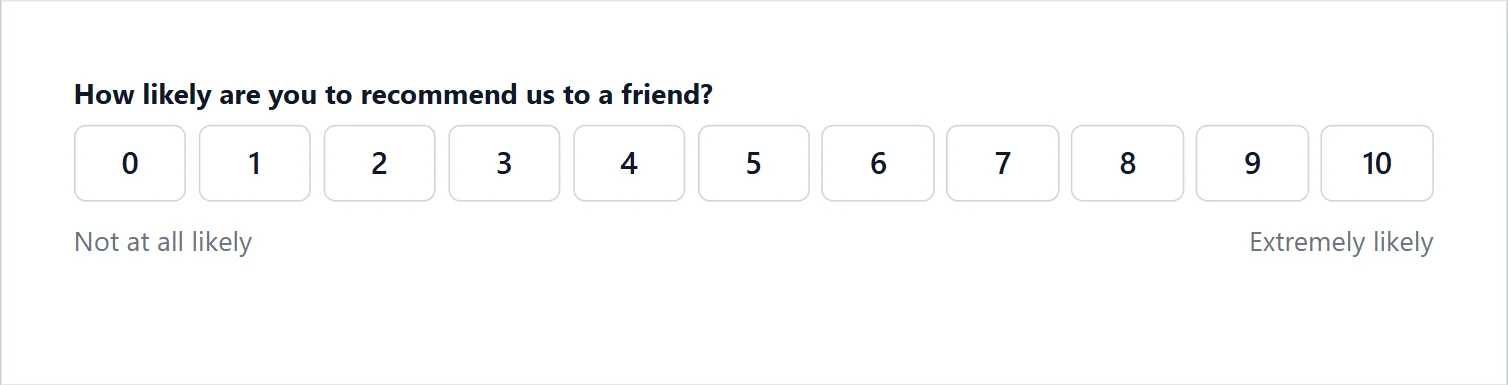
How likely are you to recommend us? from 0 to 10, with Not at all likely and Extremely likely at the ends. Scale is Standard (0-10), which is what a real Net Promoter Score needs, or Custom range for a plain 1 to 5 scale. Survey results work out your NPS score from the 0 to 10 answers.
Likert scale
A grid of Statements, each answered on the same scale: 3-point (disagree, neutral, agree), 5-point (strongly disagree to strongly agree) or 7-point. Add them with Add statement. On a phone, each statement sits on its own line over its row of answers.

Ranking
Items to rank, put in order by dragging or with each item’s arrows, by mouse or finger.
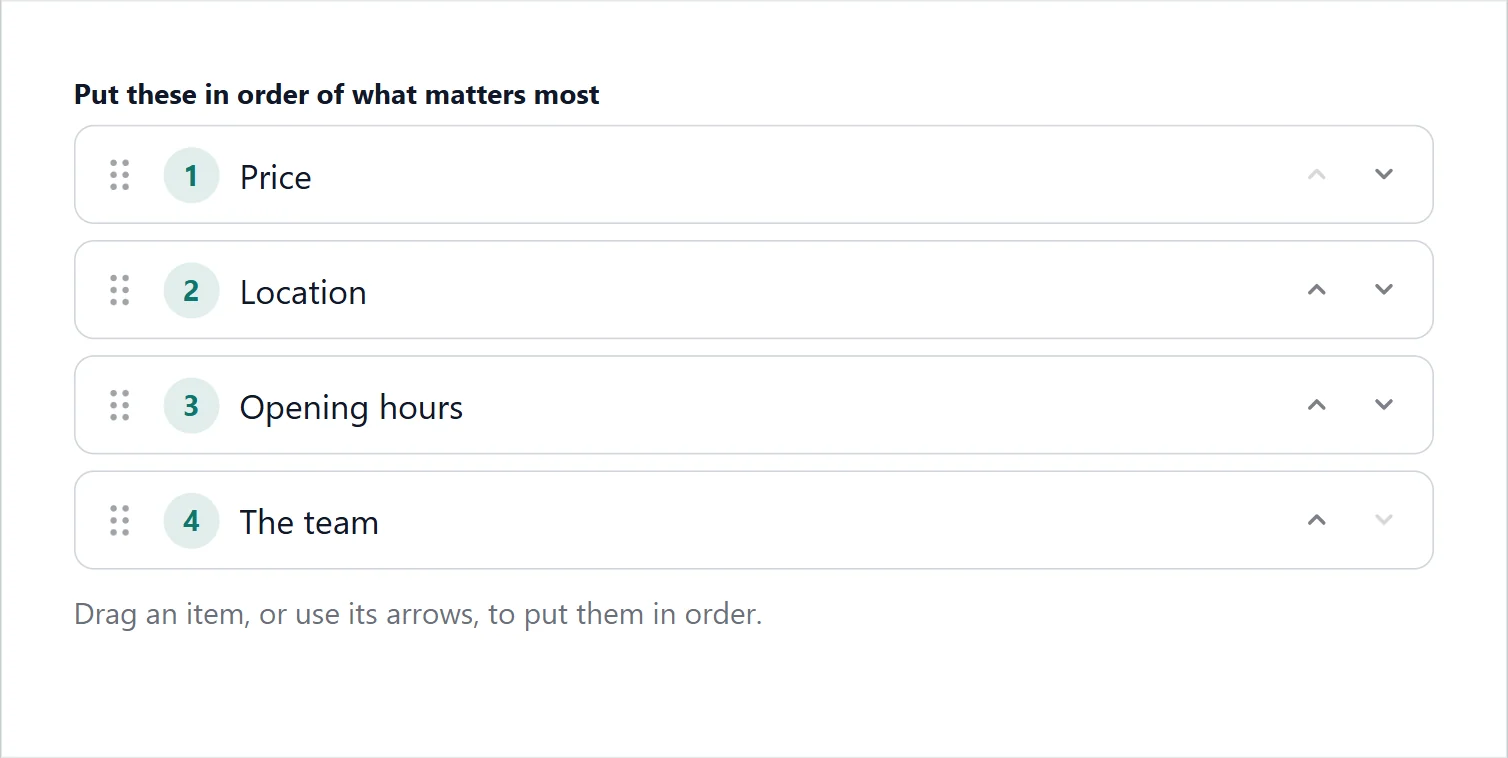
- How many places count: All of them, Only first place, or Only the top few.
- Shuffle the starting order for each person: so the first item is not picked just for being first.
The answer is saved as 1. Price, 2. Speed, 3. Support. Survey results shows how often each came first and its average place.
Choice cards, choices from your site, cascading dropdowns, NPS, Likert and ranking come with Echo Forms Signature.
Support comes with Signature: in Echo Forms, open Help & feedback and tell us what you were doing, and the people who build it answer, seven days a week. Get Signature