
Echo Forms installs like any WordPress plugin and needs nothing set up before your first form. This guide shows where everything lives.
Install it
- In WordPress, go to Plugins > Add New and search for Echo Forms, or upload the zip you downloaded.
- Press Activate.
- An Echo Forms menu appears in the sidebar. Open it and you land on Forms.
Echo Forms needs WordPress 6.2 or newer and PHP 8.1 or newer. Echo Forms Signature needs WordPress 6.5 or newer.
The setup steps
The first time Echo Forms is switched on, it opens a short setup. Each step can be skipped, and Exit setup at the top leaves it whenever you like.
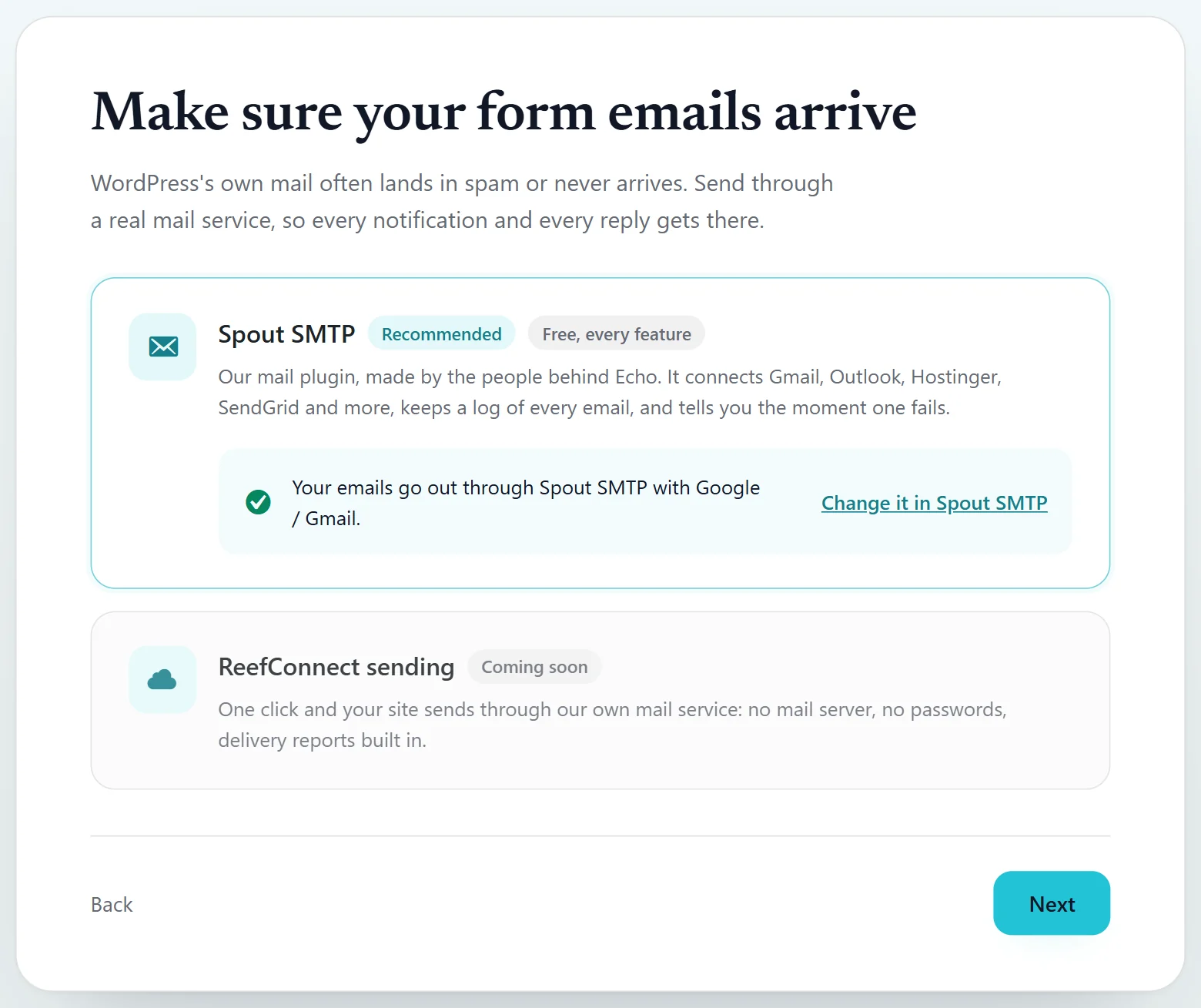
- Welcome: what Echo Forms does, in a few slides.
- Email delivery: make sure the emails your forms send arrive. WordPress’s own mail often lands in spam, so the setup offers Spout SMTP, our free mail plugin: pick your mail provider and sign in, right there.
- Test email: send yourself a test, so you know it arrives.
- Your first form: search the templates, such as dog grooming booking, or start blank. The form opens in the builder.
To run it again later, open Echo Forms > Forms and press Open the setup under Set up Echo Forms again.
What is in the menu
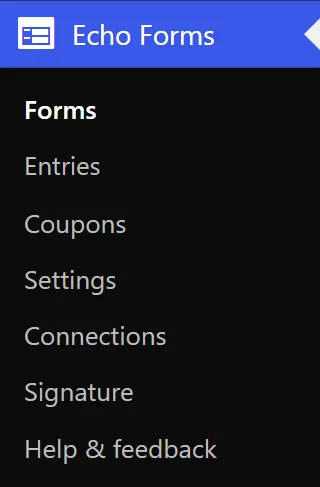
| Menu row | What it is for |
|---|---|
| Forms | Every form on the site. Start a new one, open one to change it, copy its shortcode. See The forms list. |
| Entries | Everything people have sent through your forms. See Your entries. |
| Coupons | Discount codes for forms that take payment. With Signature. See Coupons. |
| Settings | The few settings that apply to every form. See Site-wide settings. |
| Connections | The outside services your forms talk to: CAPTCHA, payment services, mailing lists, CRMs, spreadsheets, cloud storage and more. Connect each once, then switch it on per form. See Connections. |
| Signature | Where the Echo Forms Signature key goes, once the add-on is installed. See Echo Forms Signature. |
| Help & feedback | Send us a question, an idea or a problem. See Help and feedback. |
Add Echo Forms Signature
Echo Forms Signature is a second plugin. Install and activate it the same way, then open Echo Forms > Signature and enter your key. Everything it adds appears in the screens you already use: new fields in the field list, new tabs on a form’s Settings, new cards on Connections. Nothing moves.
The add-on never changes a form on its own. A Signature field or setting only does anything once you add it to a form.
If ReefCRM or Pulse Bookings is on the site too
Echo works on its own, and it works better beside the other ReefWP plugins:
- With ReefCRM, every person who sends a form becomes a contact, with the entry on their timeline. Echo’s screens then sit inside ReefCRM’s menu under Forms.
- With Pulse Bookings, a form can make a booking, offer your services and staff as choices, and use Pulse’s coupons.
Next
Make your first form: Start a form.
Support comes with Signature: in Echo Forms, open Help & feedback and tell us what you were doing, and the people who build it answer, seven days a week. Get Signature