
A form’s Settings tab has one page per subject down its left side. General is the first: the settings that shape the whole form rather than one field. Each has its own small ? beside its name while Extra help is on, which opens its part of this guide. Changes take effect when you press Save form.
Name and button

Form name
Form name 1 is for you, not your visitors: Booking Inquiry, Spring Newsletter Sign-up. It is how the form is listed under Forms, how its entries are labeled, and what {form_name} prints in an email. A name that says what the form is for, and where it lives if you have similar ones (Contact, home page), keeps a long list easy to read. Visitors only see it if you add a heading to the form yourself.
Submit button text
Submit button text 2 is the words on the button that sends the form. The default is Submit, but a button that says what happens next gets pressed more: Send my request, Book my table, Get my quote, Join the list. On a form with steps, this is the button on the last step; the earlier steps have a Next button you name on each Page break.
How the form reads
Six settings that decide how every field on the form is presented, so you set them once instead of field by field.

Required field indicator
Required field indicator 1 is the mark after the label of every required field:
- Asterisk: the familiar red star. Short, and understood almost everywhere.
- Text: (required): spells it out, which is clearer for people who do not know what the star means.
- Custom: your own word, typed in the box that appears, such as Needed or another language’s word for required.
Its color is on the Style tab, as Required indicator color.
Description placement
A field’s Description is its short line of help. Description placement 2 puts that line Above the field (between the label and the box, where it is read before typing) or Below the field (under the box, quieter). It applies to every field left on Default on its own Advanced tab; a field set to Above or Below there keeps its own choice.
Field labels
Field labels 3: switch on Hide every field’s label for a compact, minimal form where each box’s placeholder already says what it is, such as a two-field newsletter sign-up (Your name, Your email).
- The labels are only hidden on screen. Screen readers still read every one, so the form stays usable for everyone.
- To show one field’s label anyway, open that field, go to Advanced and set Label to Shown. See Label: shown or hidden.
- In the builder, hidden labels stay on the canvas, grayed with a crossed-out eye, so you can still find each field.
Give every field a placeholder before you hide the labels. A box with no label and no placeholder leaves people guessing.
Sub-label placement
Some fields are made of several small boxes, each with its own small label: a Name field (First, Last) or a Full address field (Street, City, ZIP). Sub-label placement 4 puts those small labels Above or Below their boxes. Below is the common look for addresses; above reads better when the boxes are close together.
Validation message placement
When someone presses send with a problem left, such as an empty required field, a message tells them to fix it. Validation message placement 5 puts that message at the Top of form, where it is seen first on a short form, or at the Bottom of form (single-page forms only), right by the button they just pressed, which suits a long one-page form. The field with the problem is always outlined where it is.
Validation summary
Switch on Validation summary 6 (List every Required field left blank, not just a generic error message) and that message names each field still missing: Please fill in: Phone, Preferred date. On a long form this saves people hunting for the one box they skipped.
Steps and your own class
Progress indicator
On a form split into steps with page breaks, Progress indicator sets how people see where they are: numbered steps, a bar, segments and more, fifteen looks in all. Each is pictured and explained in The progress indicator.
Testing links
Show the “Test mode” link 1 and Show the “Auto-fill and submit” link 2 put two testing links in the builder’s top bar while you edit this form. Both are only ever for you; visitors never see them. Switch either off to tidy the bar once a form is finished.

- Test mode opens the real form with every required field relaxed, so you can click through steps, logic and the thank-you message without filling everything in. Nothing is saved.
- Auto-fill and submit fills every field with realistic made-up answers and really sends it. The entry, and any booking it makes, is marked as a test, and its emails go out, so you can see exactly what you and your customers will receive.
Custom CSS
Custom CSS is printed inside a <style> tag right above this form, on every page it appears on, for a small change the Style tab does not cover. For example, to make this form’s button full width:

.eco-pform .eco-pform-submit { width: 100%; }It only loads where this form is, so it cannot change the rest of your site by accident, but it can change anything inside the form. Keep a copy of what you write somewhere safe.
A password before the form
Form password keeps a form for the people you choose, without making them log in. When it is set, visitors first see This form is password protected. Enter the password to view it. and a password box; only the exact password shows the real form. A wrong one says Incorrect password, please try again.

Use it for a members’ order form, a staff request form, or an RSVP you only send to guests. Leave the box blank for no protection. Changing the password asks everyone for the new one; nobody who knew the old one is kept in.
A password keeps casual visitors out; it is not a login. For a form only certain accounts can send, use Who can send it.
Custom JavaScript
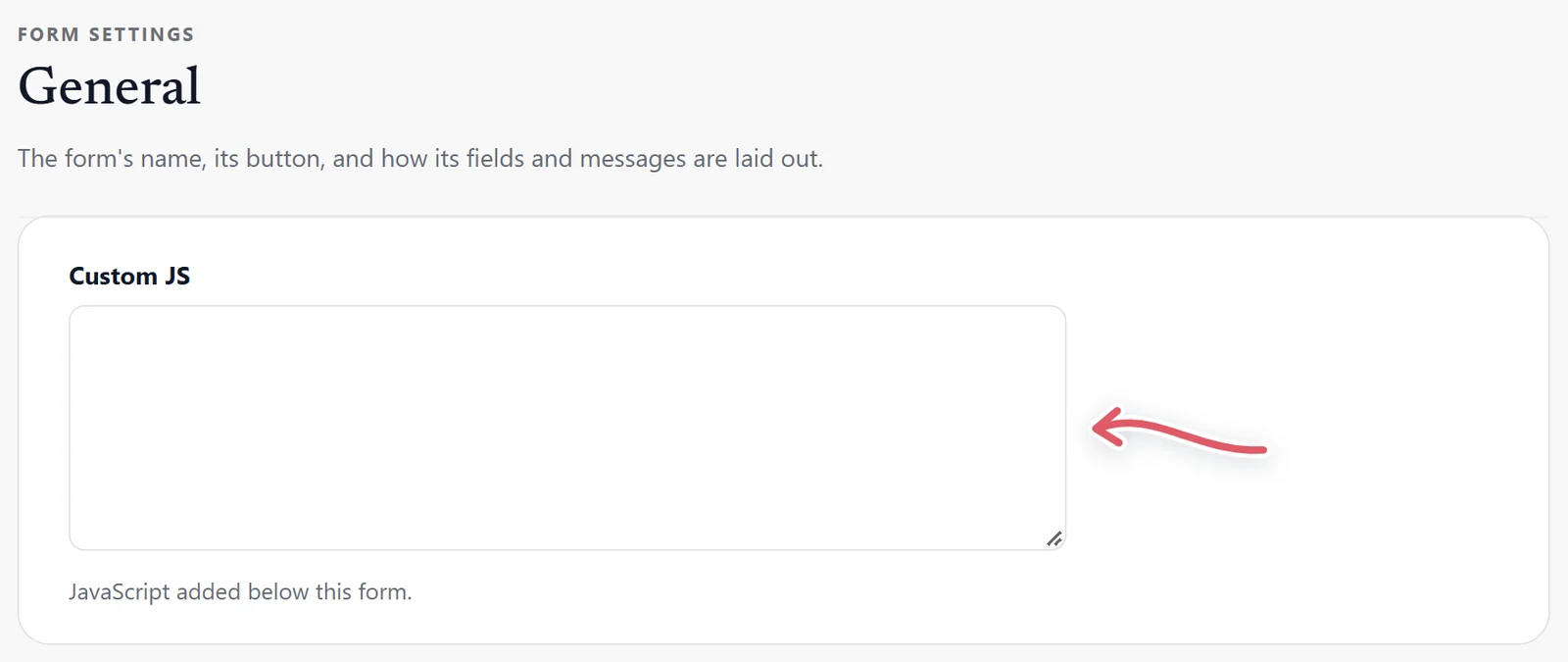
Custom JS is printed inside a <script> tag right below this form, and runs on every page the form is on. Its most common use is a tracking event for an ad platform or analytics tool when the form is sent. Only add code you trust: it runs for every visitor who sees the form.
When the connection drops
No connection: switch on Work offline for forms filled in at events, on site visits, in the field or anywhere the signal drops. Nobody loses their answers because a phone lost its bars.

- Without a connection, pressing send keeps the answers in that browser and says You are offline. Your answers are saved on this device and will be sent as soon as you are back online.
- When the connection returns, they go on their own: You are back online and your saved answers have been sent. Thank you!
- Uploaded files and CAPTCHAs need a connection, so a form with either still asks for one.
QR code
A QR code people scan with a phone camera to open the form: on a poster, a flyer, a receipt, a table card at an event. Enter The address of the page your form is on, press Save form, then Download PNG (for documents and printing at home) or Download SVG (for a print shop, it stays sharp at any size). With a landing page, the code opens that page unless you enter another address. Scan it with your own phone once before you print.

Delete this form
Delete this form at the bottom left of the builder removes it, after asking. Any shortcode, block or widget using it stops working straight away. Its entries stay under Entries.
A form password, custom JavaScript and offline forms come with Echo Forms Signature.
Support comes with Signature: in Echo Forms, open Help & feedback and tell us what you were doing, and the people who build it answer, seven days a week. Get Signature