
Every time someone sends a form, an entry is saved on your own site. Echo Forms > Entries lists them, newest first, under a count of all your Entries, how many came This week, how many are Unread and how many are Favorites.
The chart
Form analytics charts Views 1, Submissions 2 and Conversion 3 (the share of people who saw a form and sent it) per day over the last 14 days, for all forms or the one picked in the list’s Form menu. Hide chart 4 folds it away; Show chart brings it back.

A new site has nothing to chart yet. Switch on Sample chart data under Site-wide settings to see it filled with sample numbers, marked Sample numbers, until real entries arrive. Sample numbers are never saved.
The list

- All, Unread, Favorites and Trash 1, each with its count, narrow the list. Nothing unread. You are all caught up.
- Form 2 shows one form’s entries, Order 3 puts the newest or the oldest first, and Search entries 4 finds a name, an email address or any answer.
- Each row shows a star for favorites and a dot while it is unread, the person’s Name 5 and email address, the Form, when it was Submitted, a Payment column while payments are on, and a Booking column linking each entry to the booking it made in Pulse Bookings. An entry sent with Auto-fill and submit carries a Test tag. Click anywhere on a row to open it.
- The ⋯ menu 6 at the end of a row has View, Mark as unread, Resend notification, Print, Mark as spam and Move to trash.
Work on several at once
Tick the box at the start of a few rows, or the one in the heading for every row on the page, and a bar comes up at the bottom: Mark read, Mark unread, Add to favorites, Remove from favorites and Move to trash. Clear unticks them.

Anything moved to the trash says so with an Undo beside it. Under Trash you can Restore an entry or delete it for good.
Export them

- Export CSV, at the top of the page, downloads the entries of the view and form you are on, ready for Excel or Google Sheets.
- Export to Google Sheets appears beside it once you pick a form that has a Google Sheet set up on its Marketing tab. It copies them into the sheet once; for a new row on every entry as it arrives, use the live link instead. See Marketing.
Read one
Open an entry for the whole of it: the form’s name over the person’s, when it was sent (Sent October 18, 2026 at 2:14 pm) and every Answer, each question beside its answer (one above the other on a phone).

Along the top:
| Button | What it does |
|---|---|
| 1. Add to favorites | Stars it, so it shows under Favorites. It then reads Favorite; press it again to take the star off. |
| 2. Print | A clean printable page of the entry. |
| 3. Download PDF | The same, as a PDF file. With Signature. |
| 4. Resend notification | Sends its emails again, such as after you fixed a wrong address. |
| 5. Mark as spam | Blocks its IP address, and its email address if it has one, from sending any of your forms again. |
| 6. Move to trash | Out of the list. Restore it from the trash any time. |
Newer and Older 7 step through the entries without going back to the list.
Notes
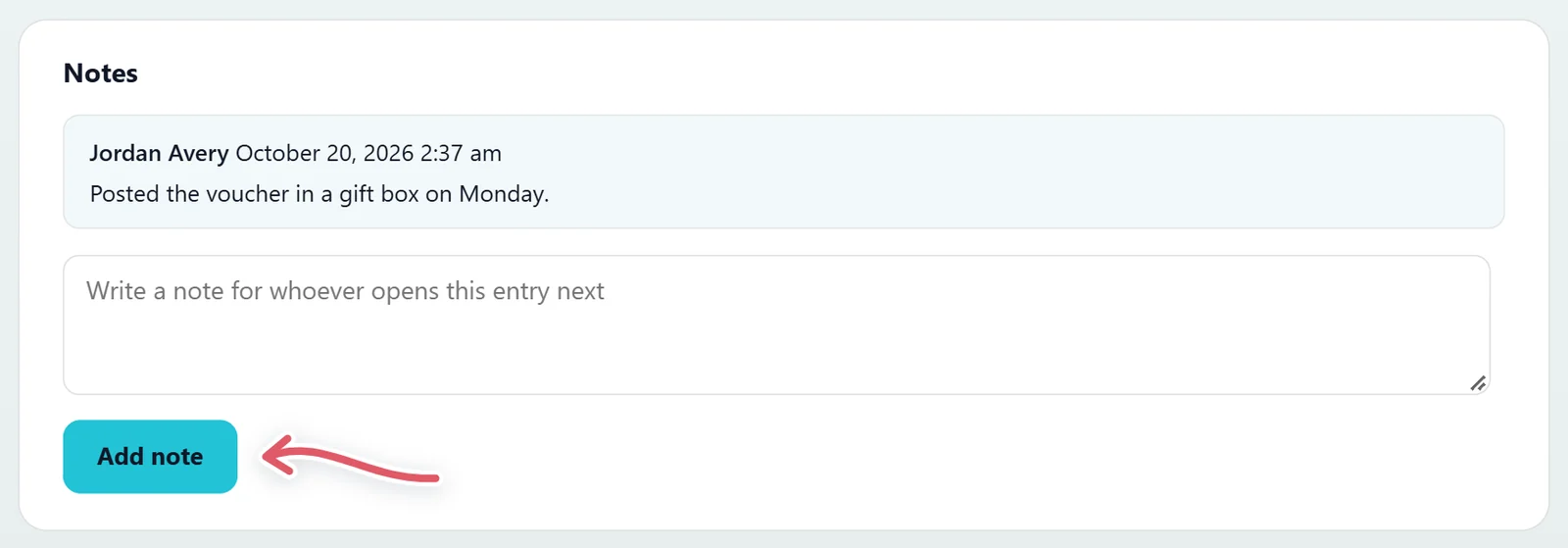
Notes stay with this entry and only people who manage forms can see them. Write one under New note and press Add note: Called back Tuesday, booked for the 14th.
Details
The Details card shows the entry’s number, the form, whether it has been Read, its IP address, the booking it made (with Open the booking) and, for an entry brought over from another plugin, Imported from.

Payment
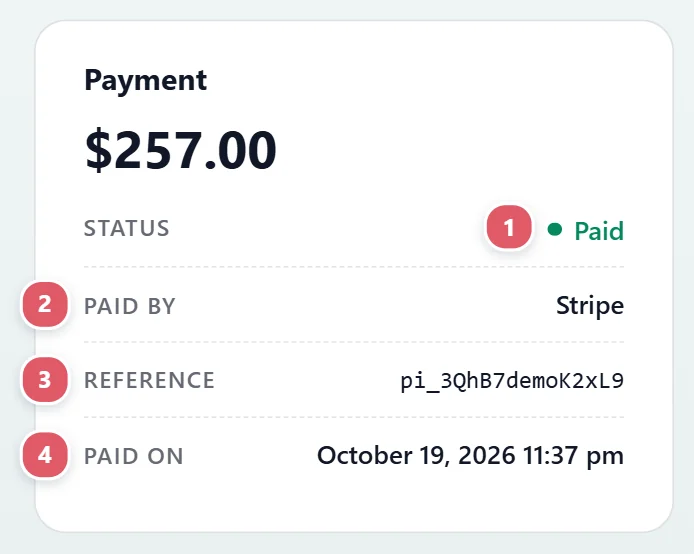
An entry that took payment has a Payment card: the amount and whether it is Paid 1, Awaiting payment or Not paid yet; how they paid (Paid by 2), the payment service’s Reference 3, when it was Paid on 4, and the Mode (Test, no real money for a test payment).
When money arrives another way, such as cash at the desk, press Mark as paid. The entry notes who marked it.
Where it came from
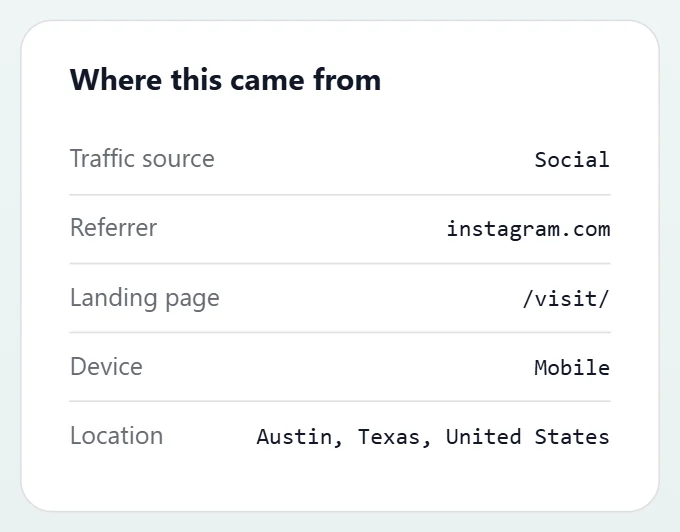
With Track where entries come from switched on under Site-wide settings, each entry gets a Where this came from card: the traffic source (organic search, paid, social, email, referral or direct), the UTM tags, the site they came from, the first page they landed on, the pages they read before sending, and their device, browser, screen size, language and location. Each detail is off until you switch it on, and nothing is sent anywhere.
The trash
Entries you move to the trash wait there until you restore them or delete them for good. Entries you moved to the trash. Restore one to put it back in the list.
Under Site-wide settings, Delete entries after 90 days ages out the saved copy of exactly what was typed, for privacy rules like GDPR. With Signature, a form’s Scheduling tab can also clear out its old entries on its own. See Scheduling and limits.
Support comes with Signature: in Echo Forms, open Help & feedback and tell us what you were doing, and the people who build it answer, seven days a week. Get Signature