
The fields most forms are made of. Each has the options every field shares (label, Required, Width, placeholder, description; see Field options), plus a few of its own, described here.
Text, paragraph text and website

- Text 1: a short answer on one line, such as a company name.
- Website 2: a web address, checked to be one.
- Paragraph text 3: a longer answer in a box that grows.
An email address, checked to be one before the form will send.

Confirm email
Ask to confirm adds a second box under the first, Confirm email, that they must type the same address into. A mistyped email (sam@gmial.com) is the most common reason you cannot reply to someone; making them type it twice catches it before they send. If the two do not match, the form stops and says so. It is checked again on your server, not just in the browser.
Use it on any form where you must reach them afterwards: bookings, orders, applications. Skip it on a quick newsletter sign-up, where a second box costs you sign-ups.
Phone
A phone number box, on phones it opens the number keypad.

Country code picker
Country code picker adds a flag and a country list in front of the number. People pick their country, type their number as they know it, and it is saved with the country code as one full number like +1 5551234567, ready to call or text from anywhere. Default country is the country it starts on, usually your own, so most people never need to touch it.
Switch it on if you have customers in more than one country, or if you send text messages from the form, which need the full international number.
Name

Name format
One box for the whole name (Sam Rivera), or switch on Split into Name Parts (Prefix / First / Middle / Last / Suffix) for separate boxes. Split names are tidier to use later: each part is kept on its own, so a mailing list gets a proper first name and a list of people can be read by last name. One box is quicker to fill in and suits people whose names do not fit first-and-last.
Name parts
Once the name is split, First and Last always show. Show prefix adds a box for Mr, Ms, Dr; Show middle name and Show suffix (Jr, III) add the others. Each part has its own label box, so First can read Given name and Last can read Family name. Where these small labels sit, above or below each box, is the form’s Sub-label placement.
Full address
Street, city, state or province, and ZIP or postal code, each in its own box, so the address arrives in parts you can sort, filter and print on a label.

Address parts
- Show address line 2 adds a second street line for an apartment, suite or unit number. It is always optional, even when the address is required, because most addresses do not have one.
- Show country adds a list of real country names. Switch it off if you only ever serve one country, and the form is one box shorter.
For addresses checked against a real map as people type, see Address lookup.
Country
A list of every country, by name. Only a country from the list is kept, whatever a browser sends, so you never get misspellings.

Picked to start
Picked to start chooses one country ahead of time, usually your own, so most people do not have to scroll a list of two hundred. They can still pick another. Leave it empty to make everyone choose, which suits a form for an international audience.
Number and number slider

- Number: a number they type, with an optional Minimum, Maximum and Step.
- Number slider: the same range, chosen by dragging.
Slider range
A number slider’s Minimum and Maximum are its two ends, and Step is how far each move goes: 30 to 120 in steps of 15 offers 30, 45, 60 and so on, just right for a massage length in minutes. The chosen number shows as they drag. Pick a step that matches real choices; a slider that lands on 37 minutes is no help to anyone.
Date
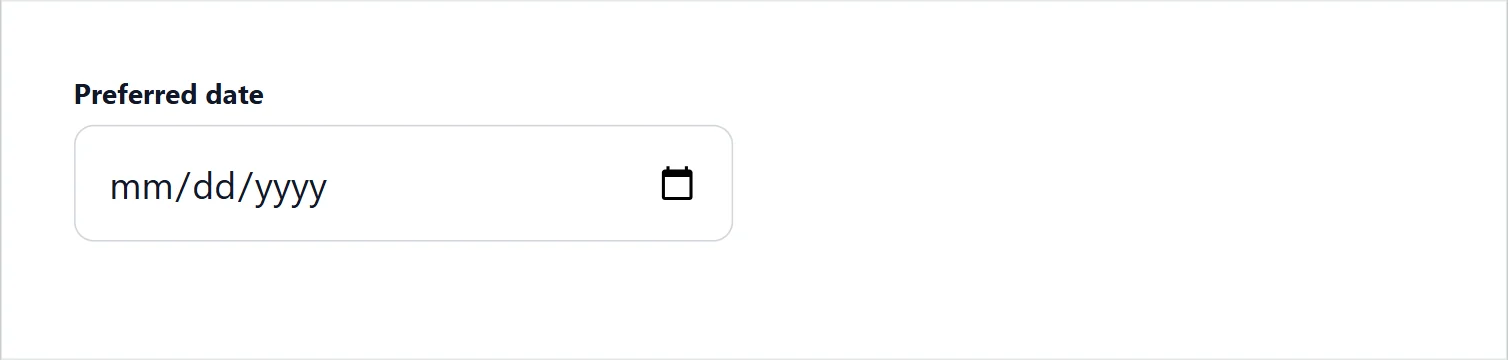
Date input type
Date input type is how people choose the date:
- Date picker (calendar): a calendar to click. Best for a date in the next few weeks or months, such as an appointment.
- Date field (text box): they type it. Fastest for a date they know by heart.
- Date dropdowns (month, day, year): three lists. Best for a birthday, where clicking back through a calendar year by year would take forever.
Date format
Date format is how the text box and the dropdowns read, such as MM/DD/YYYY in the US or DD/MM/YYYY elsewhere. Pick the one your customers expect, so 03/04 is never misread. The calendar always follows the visitor’s own browser.
Dropdown labels
With Date dropdowns, Month label, Day label and Year label are the small words over each list. Change them for another language, or to say more: Birth month.
Also ask for a time
Also ask for a time adds a time box beside the date, saved together as one answer, such as November 3, 2026 at 2:30 PM. For a separate time with more ways to pick it, add a Time field instead.
Earliest and latest allowed date
Earliest allowed date and Latest allowed date are counted in days from today, so they move forward on their own every day.
- Earliest 0 allows today; 1 starts tomorrow, which gives you a day’s notice; 2 gives two.
- Latest 0 means no limit; 90 stops people booking more than three months ahead.
Dates outside the window are grayed out in the calendar and refused by your server.
Block days of the week
Block these days of the week: tick the days you are closed, such as Sunday and Monday. They cannot be picked in the calendar, and your server refuses them even if someone types one in. Holidays and one-off closures are not blocked here; for real availability, use Pulse Bookings.
Time
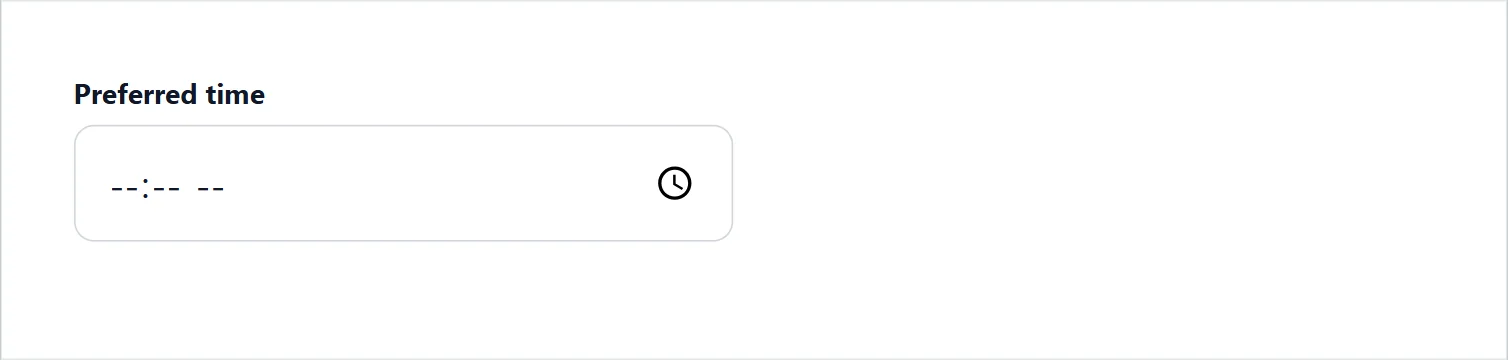
Time input style
Time input style picks how they choose:
| Style | What they see |
|---|---|
| Browser clock | The device’s own time picker. Familiar, but fiddly on a phone. |
| Hour and minute dropdowns | Separate lists for hour, minute and AM/PM. Nothing to type. |
| Tappable time slots | A grid of real times to tap. Best for booking a set opening window. |
| Stepper | One big readable time with minus and plus buttons. |
| Single dropdown | Every allowed time in one plain list. The most compact option. |
Show times as 9:30 AM or 09:30, whichever your customers read naturally. It is always saved as 24 hour, so entries sort correctly.
Times offered
Earliest time, Latest time and Every so many minutes set which times are offered: a 30 minute interval on a 9 am to 5 pm window gives 17 times, 9:00, 9:30 and so on up to 5:00. Match them to your opening hours and how long a visit takes, and nobody can ask for 3 am.
Date range
Two dates, a start and an end, for a stay, a rental or time off.
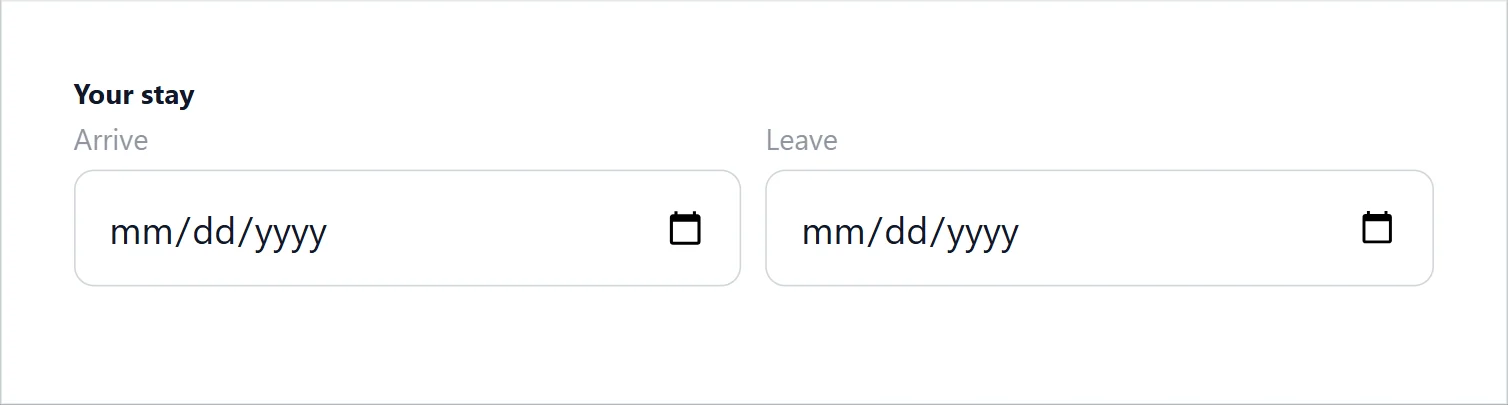
Labels for the two dates
Label for the first date and Label for the second date rename the two boxes to fit what they are booking: Arrive and Leave for a stay, Pick up and Return for a rental, First day off and Back at work for leave. Left empty they read From and To.
The second date cannot be earlier than the first: its calendar starts at the first date, and the form says so before it sends. A required range needs both dates; an optional one takes both or neither. The entry keeps it as November 3, 2026 to November 9, 2026.
File upload

Allowed file types
Allowed file types is a list of file endings, without dots, separated by commas: pdf, doc, docx for a CV, jpg, jpeg, png, heic for photos from a phone. Anything else is refused before it uploads, and again on your server, so nobody can send you a program disguised as a document. Leave it empty to allow the usual safe types WordPress accepts.
Max file size
Max file size (MB) caps each file, such as 10. A phone photo is about 3 to 5 MB; a scanned PDF can be 20. Your web host also has its own upload limit, often 64 or 128 MB, which wins if it is lower. A file that is too big is refused with a message saying the limit.
Uploaded files stay on your site, linked from the entry. With Signature they can also be copied to Google Drive or Dropbox; see Marketing.
Password
A password box. Require confirmation (Confirm password) asks for it twice. Show password strength meter shows Weak, Fair, Good or Strong as they type; it is a hint and does not stop a weak password.

Address lookup
An address box that suggests real addresses as they type and fills in the city, state and ZIP when they pick one. Split into separate fields (street, city, state, ZIP) shows each part in its own box, still filled in for them and still editable.

Suggestions use a Google key set in Pulse Bookings’ settings. Without one, the field says Manual entry, live address suggestions are not configured for this site yet and takes a typed address.
Map
A map people click to drop a pin, then drag to the exact spot: a gate, a field, a pickup point an address cannot name. A search box jumps the map to a place, and Use my location puts the pin where they are standing (the browser asks them first). The entry keeps the place with its latitude and longitude and a View on map link.
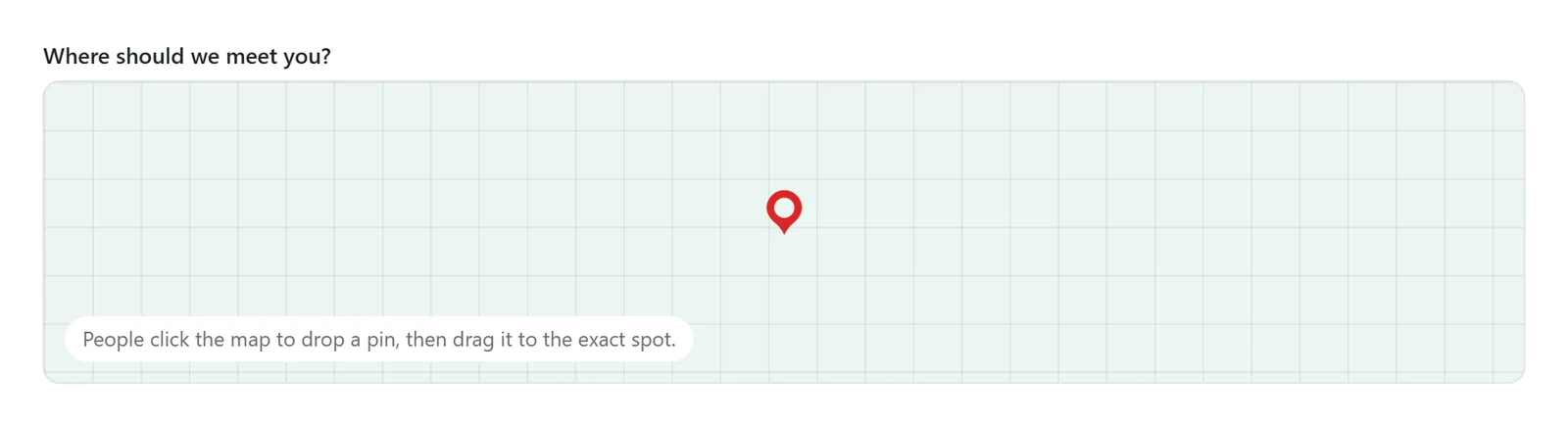
| Setting | What it does |
|---|---|
| Start the map at | Two numbers, latitude and longitude, such as 40.7128, -74.0060. Right-click a spot in Google Maps to copy them. Left empty, the map starts on the whole world. |
| How close it starts | From Continent down to Building. |
| A search box to jump to a place | On to start. |
| A “Use my location” button | On to start. |
A required map holds the form until a pin is dropped: Drop a pin on the map to show the spot.
The map needs a map service: connect Google Maps or Mapbox under Connections. Until one is connected, people see a box to type the place and the Use my location button instead, and the builder says so under the field.
Signature
A pad they sign with a finger or a mouse, with Clear to start again. The signature is saved as a picture on the entry.

Camera
Opens your camera on a phone or tablet, or a normal file picker on desktop. For a photo of a damaged item, a meter reading or an ID.

Range slider
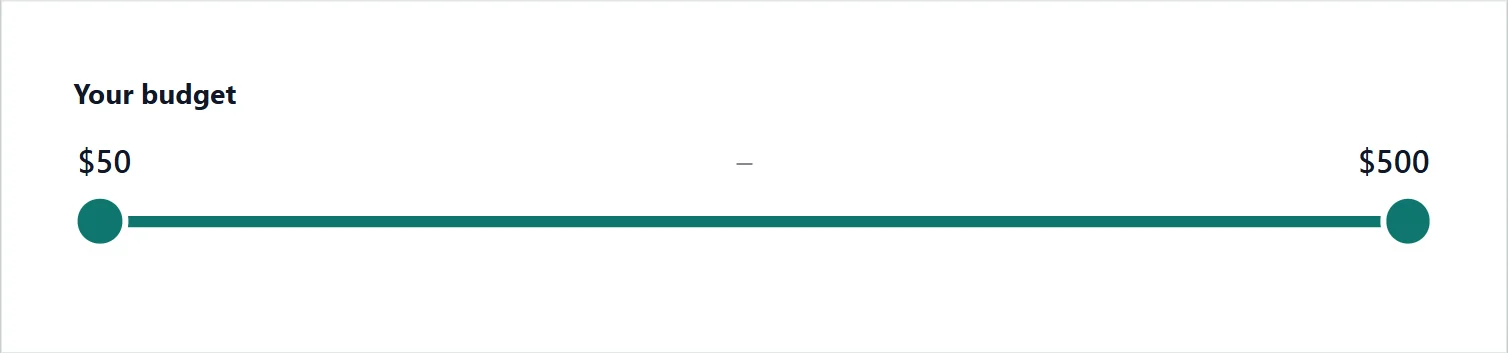
Two handles to pick a from-to range, such as a budget. Minimum, Maximum and Step set the range. Prefix and Suffix frame both numbers: a prefix of $ shows $500 – $5,000.
Repeater list
Rows they add themselves, such as guests, children or items.

- Layout: Table (all rows on screen), or One button per person, where each person gets a button that opens a short form of their own.
- Enable multiple columns: off is one answer per row, such as a list of guest names; on is a real table with the Columns you add, such as Item, Quantity and Notes.
- Take the number of people from: point it at the field that asks how many are coming, and the rows match that answer as it changes.
- Column that names the button: once filled in, a button says Sam instead of Participant 3.
- Maximum rows: how many they can add. 0 means no limit.
Password, address lookup, signature, camera, range slider and repeater list come with Echo Forms Signature.
Support comes with Signature: in Echo Forms, open Help & feedback and tell us what you were doing, and the people who build it answer, seven days a week. Get Signature