
Click any field on your form and its options open on the Field options tab, on the left. They come in three parts: General (what the field asks and how it sits), Advanced (its name, starting answer, help text and checks) and Smart logic (when it shows). Press Done to close them. Changes show on the form straight away; nothing is live on your site until you press Save form.
Every setting below has its own small ? beside its name while Extra help is on, and that ? opens the part of this guide about that one setting. Options only one kind of field has, such as a date’s earliest day, are in the field guides: Everyday fields, Choices and ratings and Layout and steps.
General
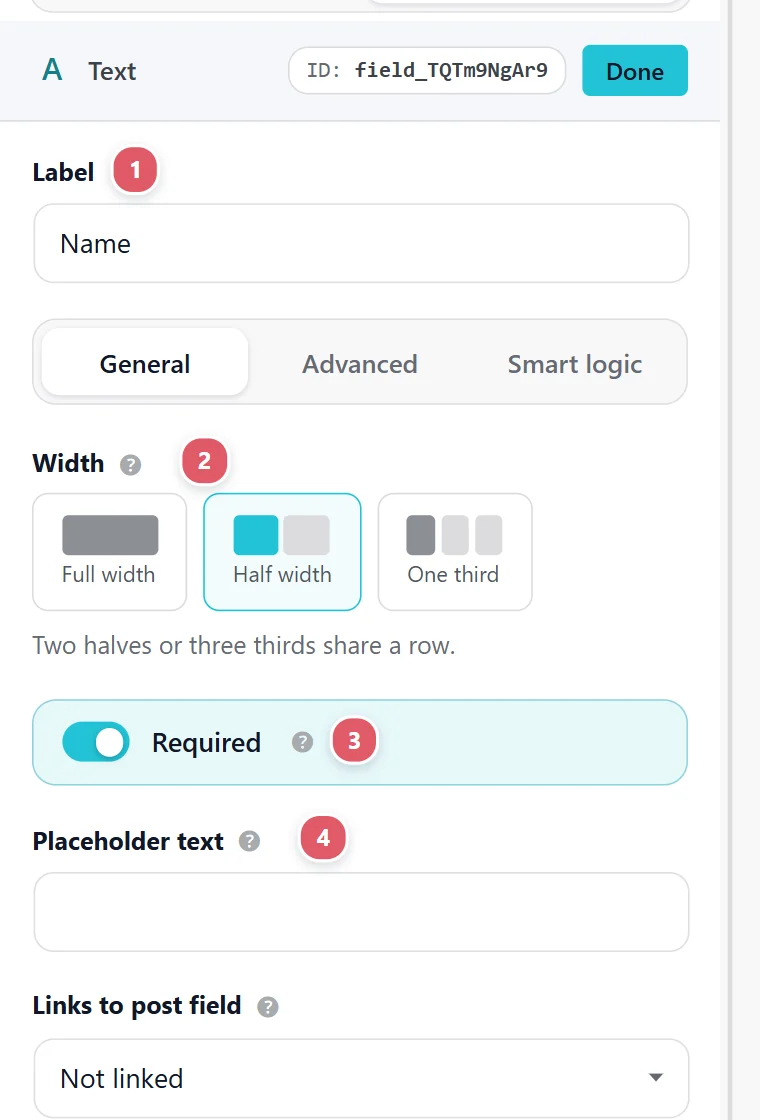
The settings every field starts with. The numbers match the picture.
Label
Label 1 is the question, exactly as visitors read it above the box: Your email, What date works for you?, How did you hear about us? It is also how the field is named everywhere you see it later, in the entries list, in the email you get and in exports, so a clear label now saves guessing later.
- Write it as you would ask it out loud. Phone number is clearer than Phone; When would you like to start? is clearer than Date.
- Keep it short. A line of explanation belongs in the field’s Description (on Advanced), not in the label.
- On a Page break, this box is called Step title instead: it names the step in the progress indicator, such as Your details or Payment.
To hide a label but keep it for screen readers, use Label on the Advanced tab. Never leave a label empty: people using screen readers rely on it to know what the box is for.
Width
Width 2 decides how much of the row a field takes: Full width, Half width or One third. Fields next to each other that add up to a full row sit side by side; anything else starts a new row.
For example, to put first and last name on one line:
- Click the first-name field and choose Half width.
- Click the last-name field, directly after it on the form, and choose Half width too.
- The two now share one row. Three fields at One third share a row the same way, such as city, state and ZIP.
A row fills from left to right in the order the fields are on the form, so drag fields next to each other first. On phones every field stacks to full width automatically, because two boxes side by side are too narrow to type in on a small screen.
Required
Switch on Required 3 when the form is no use without this answer, such as an email you will reply to. Required fields get a mark after their label (an asterisk unless you change it under Required field indicator).
What happens when someone leaves it empty:
- They press the submit button and the form stops instead of sending.
- The field is outlined and a message says what is missing. The message is the browser’s own Please fill out this field unless you write your own in Custom validation message.
- They fill it in and send again.
The check runs twice: in the browser as they press the button, and again on your server when the answers arrive. Even someone who switches off their browser’s checks, or a bot posting straight to your site, cannot send the form without it.
A field hidden by Smart logic is never required. If a required field only shows when someone picks Other, people who do not pick Other are not stopped by it.
Placeholder text
Placeholder text 4 is a faint hint inside the empty box, such as name@example.com or (555) 123-4567. It shows the shape of the answer you expect and disappears as soon as they start typing.
- It is never saved as an answer. An empty box with a placeholder is still empty, so a required field is still required.
- Use it for an example, not for the question itself. A label that only lives in the placeholder vanishes the moment someone types, and they can forget what the box was for.
- For a field whose placeholder already says everything (a single Search box, say), you can hide the label with Label and keep the placeholder.
Choices
A Dropdown, Multiple choice or Checkboxes field lists its answers under Choices.
- Type each answer in its own row, such as Morning, Afternoon, Evening.
- Press Add choice for another row; the trash icon beside a row removes it.
- The order here is the order visitors see.
What they pick is saved exactly as written, so the entries and emails read Afternoon, not a code. A priced choice field (from Prices and totals) has a price box beside each answer.
With Echo Forms Signature, choices can also come from your site (pages, posts, categories, users), depend on an earlier answer, or show as cards with icons and pictures. See Choices and ratings.
Choice layout
For Multiple choice and Checkboxes, Choice layout sets how the answers are arranged: in One column, Two columns or Three columns, or Inline (side by side) on one line like a sentence. Long answers read best in one column; short ones such as Yes / No or sizes S M L XL look tidier inline. On phones, columns fold to fit the screen.
Links to booking field
Only on a site with Pulse Bookings. Links to booking field says what this answer becomes on the booking the form makes: the customer’s name, email, phone, the service, the date and so on. Leave it on Not linked (extra info only) for anything the booking itself does not need, such as Anything we should know?; it is still kept on the entry and shown on the booking. See Forms that make bookings.
Advanced
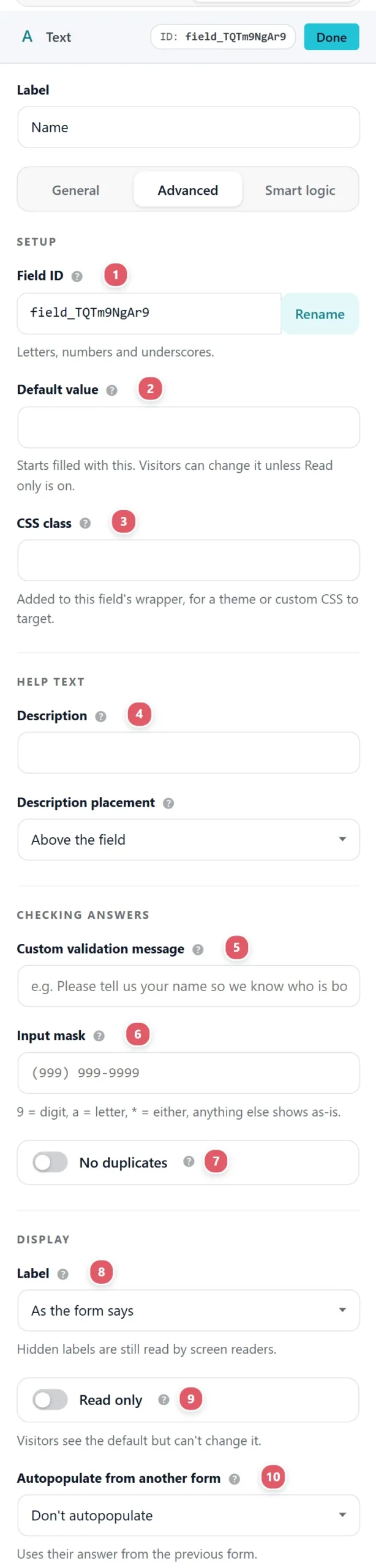
The settings most fields never need, until one does. The numbers match the picture.
Field ID
Every field has a Field ID 1, its name behind the scenes, such as email or field_2. You use it in three places:
- Merge tags in emails and messages:
{field:email}puts this field’s answer into the text. - Links between forms: Autopopulate and Smart logic point at a field by its ID.
- Exports and connections: spreadsheet columns, webhooks and automation apps name each answer by it.
To rename one, type the new name and press Rename. Use letters, numbers and underscores, starting with a letter or an underscore: company_size, not Company size. Echo updates every merge tag, rule and link on your forms that used the old name, so nothing breaks.
Something outside Echo that already reads the old name, such as a Zapier step or a spreadsheet formula, does not change with it. Rename before you connect those, or update them afterwards.
Default value
Default value 2 fills the field in when the form opens, such as United States for a country or 1 for a quantity. Unlike a placeholder, it is a real answer: if they leave it, it is what gets saved.
Use it when most people will give the same answer and you want to save them typing. They can still change it, unless you also switch on Read only.
CSS class
CSS class 3 adds a class name of your own to this field’s wrapper on your site, such as highlight. It does nothing by itself; it is a handle for your own CSS, or for your theme, to style this one field differently. For the whole form’s look, the Style tab needs no code at all.
Description
Description 4 is a short line of help shown with the field, such as We only use this to text you a reminder or PDF or Word, up to 10 MB. It answers the question people would otherwise ask before filling the box in.
Description placement puts that line Above the field (under the label) or Below the field. Leave it on Default and it follows the form-wide choice in Description placement, so every field matches.
Custom validation message
On a required field, Custom validation message 5 replaces the browser’s own Please fill out this field with your words, in your tone: Please tell us your name so we know who is booking, or We need a phone number in case your driver can’t find you. A message that says why is answered far more often than a generic one.
Input mask
An Input mask 6 shapes the answer as people type it, adding the brackets, spaces and dashes for them, so every answer arrives in the same format. In the mask:
| Type | It means |
|---|---|
9 | any digit |
a | any letter |
* | a digit or a letter |
| anything else | shown as it is |
Examples: (999) 999-9999 for a US phone number, 99/99/9999 for a date typed by hand, aa-9999 for a code such as AB-1234. They cannot type a letter where the mask wants a digit. Masks work on single-line boxes: Text, Phone, Number and Website.
No duplicates
No duplicates 7 refuses an entry whose answer in this field is already on another entry of this same form. Use it for things that must only happen once: a ticket or order number, a membership ID, or an email address on a sign-up that allows one place per person.
When someone sends an answer that is already there, the form stops and tells them so on that field; nothing is saved. Blank answers are never compared, so an optional field does not block people who skip it. It is checked on your server against every saved entry, at the moment they press send.
To allow only one entry per person whatever they type, see One entry per person.
Label: shown or hidden
Label 8 decides whether this field’s label shows on your site:
- As the form says: follows the form. Labels show, unless the form’s Field labels setting hides every label.
- Shown: always shows, even when the form hides every other label. Use it for the one field that needs its question spelled out.
- Hidden: hidden on screen. Use it when the placeholder already says what the box is, such as Search or Email address.
A hidden label is never removed: screen readers still read it aloud, so the form stays usable for everyone. In the builder a hidden label stays on the canvas, grayed, with a crossed-out eye and Hidden on the form, so you can still find and click the field.
When two fields share a row and only one of them shows its label, Echo keeps an empty line above the other one, so the two boxes still line up. On phones, where the fields stack, there is no empty line. A Name or Address field’s small sub-labels (First, Last, City) have their own switch, Hide sublabels.
Read only
Read only 9 shows the field’s starting answer but does not let people change it. Pair it with a Default value, or with Autopopulate, when the answer is already settled: a plan they picked on an earlier form, a reference number, or the event they are booking. It is still sent with the form and saved on the entry like any other answer.
Show or hide a field
Smart logic shows a field only when an earlier answer calls for it, so people only see the questions that apply to them. Two everyday examples:

- An Other (please say) box that only appears when someone picks Other.
- Delivery address fields that only appear when someone chooses Delivery rather than Pick up.
How to set it up, using the first example:
- Add a Multiple choice field called How did you hear about us? with the choices Google, A friend, Other. Then add a Text field called Where did you hear about us? below it. Press Save form.
- Click the text field, then open its Smart logic 1 tab.
- Switch on Conditional logic 2.
- Choose Show this field if.
- Pick the field to watch: How did you hear about us?
- Choose the test: is.
- Type the value: Other, spelled exactly as the choice is.
- Press Save form, then open the form with Preview and try it: the box appears only when Other is picked.
The tests you can use:
| Test | Shows (or hides) the field when the watched answer… |
|---|---|
| is | is exactly this value |
| is not | is anything except this value |
| contains | has this text anywhere in it, such as @gmail.com in an email |
| is empty | has not been answered |
| is not empty | has any answer at all |
Good to know:
- The list only offers fields already saved on the form, so add the field you want to watch, save, then come back to set the rule.
- A hidden field is never required, and its answer is not sent, even if they typed something before it hid.
- A step whose fields are all hidden is skipped, so a multi-step form never shows an empty page.
- The rule is checked again on your server when the form arrives, so a hidden field’s answer cannot be slipped in.
Start with an answer from another form
Autopopulate from another form lets two of your forms work as one journey: someone fills in Form A, is taken straight to Form B, and the fields you link on Form B are already filled in with what they told you on Form A. Nobody types their name, email or anything else twice.
Picture it first
Say you run a dog-grooming business with two forms:
- **Form A, *Quick quote***: name, email, the dog’s breed and size.
- **Form B, *Book your appointment***: name, email, breed, plus the date, time and any special care.
A customer fills in Quick quote and presses send. Instead of a thank-you message, they land on Book your appointment, and its Name, Email and Breed boxes already hold what they just typed. They only answer the new questions, check the rest, and book. You get two entries, one from each form, both from the same person.
Set it up, step by step
You need two things: Form A must send people to Form B, and Form B’s fields must know which of Form A’s answers to take.
On Form A (the first form):
- Put Form B on a published page of your site, such as yoursite.com/book. The link only works once Form B lives on a page people can open.
- Open Form A and go to Settings, then Confirmations.
- Set After they send it to Send them to another form and pick Form B. See Send them on to another form.
- Press Save form.
On Form B (the second form), for each field that should start filled in:
- Click the field, such as Name, and open its Advanced tab.
- In Autopopulate from another form, choose Form A.
- In Field to pull, which appears next, choose Form A’s field that holds this answer, such as Form A’s Your name.
- Repeat for every field you want filled in, then press Save form.
Fields you do not link start empty as usual.
What happens behind the scenes
When someone sends Form A, Echo saves their entry and opens Form B’s page with a private one-time code in the address. Form B reads Form A’s answers through that code and fills in the linked fields. The code only opens that one entry, so nobody can see someone else’s answers by changing the address, and it keeps working if they leave the page open for a while.
They can still change any answer that was filled in for them, unless you switch on Read only for that field, which is useful for something settled on Form A, such as a quote number or a chosen plan.
If a field does not fill in
- Opened Form B some other way? Autopopulate only fills in when Form A sends them there. Someone who opens Form B from your menu sees it empty, which is fine: they fill it in as normal.
- Check the pairing. The Field to pull must be the Form A field that holds the answer. If you renamed a field’s ID on Form A, Echo updates the pairing for you; if you deleted that field, pick another.
- Matching types read best. An email pulled into an email box, a date into a date box. A choice is filled in when Form B’s field has a choice spelled the same way.
- Form B must be on a published page. If it is not, Form A falls back to its thank-you message and Form B never opens.
Autopopulate from another form, and sending people to another form after they send one, come with Echo Forms Signature.
Support comes with Signature: in Echo Forms, open Help & feedback and tell us what you were doing, and the people who build it answer, seven days a week. Get Signature