
A popup keeps the page clean: a button sits where the form would be, and the form opens over the page when it is pressed.
Make a form a popup
The numbers match the picture.

Display mode
Set Display mode 1 to Popup (opens in a modal) to turn a form into a popup. Every copy of the form follows it, from the shortcode, the block or the Elementor widget, so there is nothing to change on the page itself. Inline (embedded on the page), the default, puts the form back on the page.
A popup suits a form people opt into, such as Get a quote or Join our list, on a page that should stay about something else. A form that is the whole point of the page, such as a contact page, reads better inline.
Button text
Button text 2 is the words on the button that opens the popup, placed where the form would have been. Left blank, it says Open form, so give it words that say what they get: Get my free quote, Book a call, Join the waitlist. Its colors follow your form’s Style tab.
Popup size
Popup size 3 is how wide the popup opens: Small for a short sign-up, Medium for most forms, Large for a long form or one with side-by-side fields, Full screen for a step-by-step form you want people to focus on. On phones every size fills the screen, because a small floating box is hard to use on a small screen.
Closing
Closing: with Close on outside click on, a click on the darkened page behind it closes it. Switch it off for a long form, so a stray click does not lose what someone typed. The X button and the Escape key always close it either way.
Any button or link can open the popup too. Give it the attribute data-eco-popup-open with the form’s number as its value, such as data-eco-popup-open="12". In Elementor, that is the button’s Advanced > Attributes box, written data-eco-popup-open|12.
Open it on its own
With Echo Forms Signature, a popup can open by itself instead of waiting for a button. Use it gently: a well-timed popup gets far more sign-ups than a form sitting on the page, but one that interrupts too early, or every page, annoys people.

Opens
Opens 1 decides what brings the popup up:
| Choice | When it opens |
|---|---|
| Visitor clicks a button | Only from the button. The usual choice. |
| Immediately on page load | As soon as the page has loaded. |
| After a time delay | Delay 2: a number of seconds after the page loads (5 to start). |
| After scrolling down the page | Scroll depth: once that much of the page has been scrolled (50% to start), so it reaches people who are reading. |
| When the visitor is about to leave | When the pointer heads for the tabs or the address bar. It needs a mouse, so it never opens on phones and tablets. |
With any choice but the button, no button is shown on the page.
Delay and scroll depth
Delay 2 and Scroll depth set exactly when an automatic popup opens. Good starting points: 20 to 30 seconds on a page people read, or 50% scroll depth on a long article, so the popup reaches people who are interested rather than people who just arrived. For a leaving-the-page popup, an offer works better than a question: Before you go, here is 10% off your first order.
How often
Show again keeps a popup that opens on its own from nagging the same person on every page: Every page view, Once per browser session, Once per day or Once per week. Counted in their browser. It only limits the automatic trigger above; clicking a button always opens it.

Popups that open on their own come with Echo Forms Signature. While the add-on is off, a popup form opens from its button again.
Design the popup
With Echo Forms Signature, a popup is more than a box around the form. Switch on Design this popup 1 and a live preview beside the settings shows it as visitors will see it.
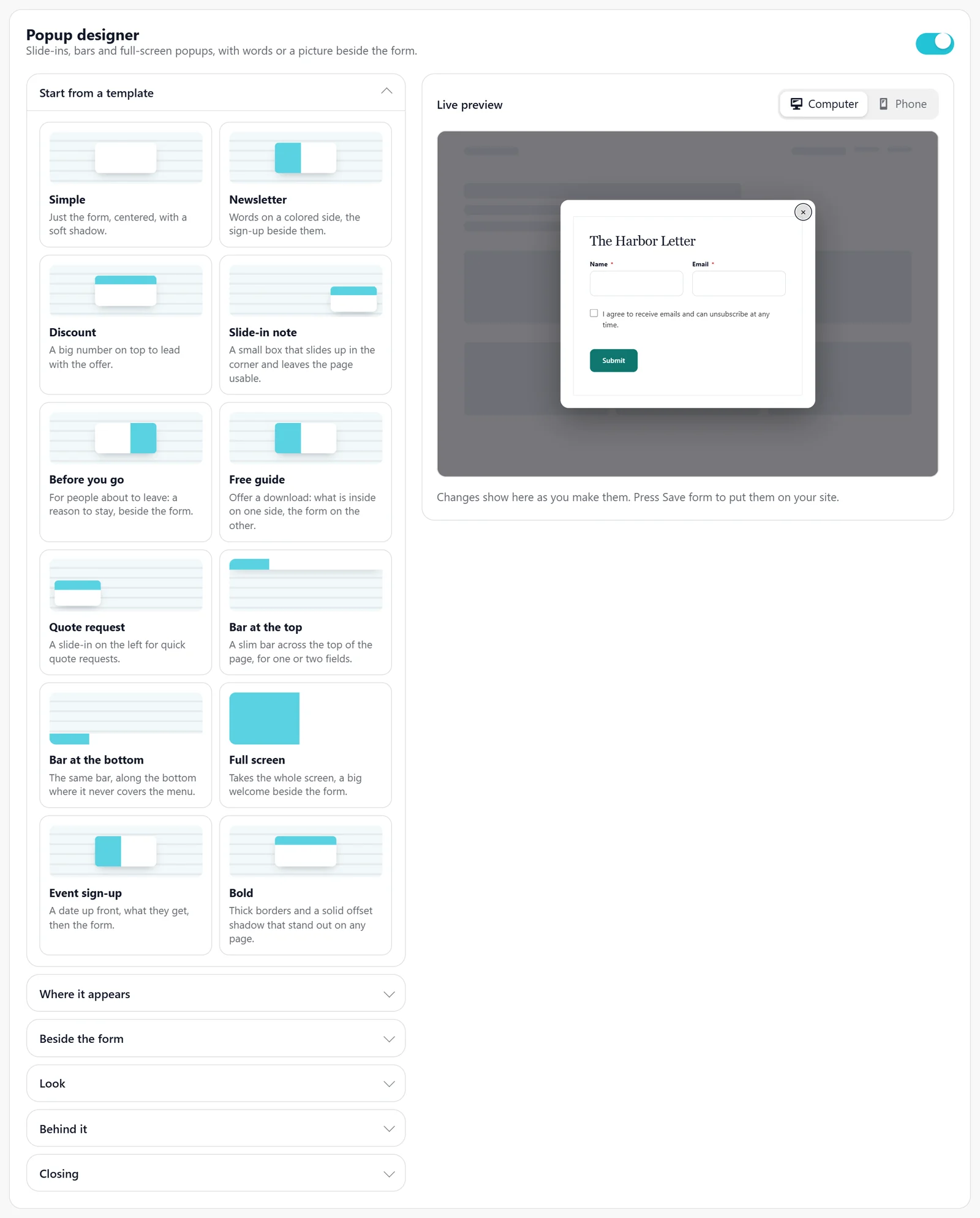
- Start from a template: twelve of them, from a plain card to an event sign-up with the date on a colored side. Pick one, then change anything. Undo puts back what you had.
- Where it appears: Centered, Slide in, right or left, Bar at the top or bottom, or Full screen. Slide-ins and bars leave the page usable behind them.
- Beside the form: Just the form, or words and a picture on the left, the right or on top: a heading, a few lines, a list or a date.
- Look: the popup’s color, width, corners and shadow (Subtle, Soft, Solid or Glow).
- How it appears: Fade, Zoom, Rise or Slide.
- Behind it: the shade color, how dark it is, and whether to blur the page behind.
- Closing: words instead of the ×, such as No thanks. Escape and the × keep working either way.
A slide-in from the corner suits a newsletter or a discount: it never covers what someone is reading. Keep the centered and full-screen popups for a form that is the point of the visit, such as a booking or a quote.
Support comes with Signature: in Echo Forms, open Help & feedback and tell us what you were doing, and the people who build it answer, seven days a week. Get Signature