




Connect a service once, then switch it on for the forms that need it: CAPTCHA, Google Sheets, payments, mailing lists and, with Signature, CRMs, texts, file storage, calendars, databases, automation apps and AI.
Connect a service once here, then switch it on for a form on that form’s Settings tab. Nothing here changes a live form on its own.
The screen starts with a Status list of every service, Connected or Not connected, that jumps to its card. Each card says exactly where to find what it asks for in that service’s own dashboard.
Keys stay in this site’s own database and are never sent to us. A saved secret is never shown again: leave its box empty to keep it. To disconnect, tick Remove these keys when I save on its card, or press Disconnect.
Provider: None, the hidden check only 1, Google reCAPTCHA 2 (the “I’m not a robot” box), or hCaptcha 3. Register your site’s real domain with the service and paste its Site key and Secret key.
Then switch it on for a form under Spam protection. See Spam protection.
Paste a Google Service account key (JSON). The card says how to make one in Google Cloud Console, and gives the address to share each spreadsheet with as an Editor. Then pick the spreadsheet on a form’s Marketing tab.
On a site with Pulse Bookings, Echo can use the key saved there: Using the key saved in Pulse Bookings. Paste one here to give Echo its own.
The Address lookup and Map fields draw their suggestions and maps from Google Maps or Mapbox. Pick the Map service 1, then paste its key 2:
pk.) limited to your site’s address. A secret token (sk.) is refused: a map shows its token to everyone who opens the page.On a site with Pulse Bookings that already has a map key, Echo uses that one, and a key saved here takes over only if that one is removed.
Test or live mode, the currency, what to tell people who pay by cash or bank transfer, and a card for each payment service. See Payments.
Mailchimp, Kit, MailerLite, Brevo, ActiveCampaign, GetResponse and SendGrid take a key. Klaviyo takes a private key, Drip a token and account ID, Campaign Monitor a key. AWeber and Constant Contact ask you to make an app with the redirect address shown on the card, then sign in once. MailPoet, on the same site, needs nothing at all.
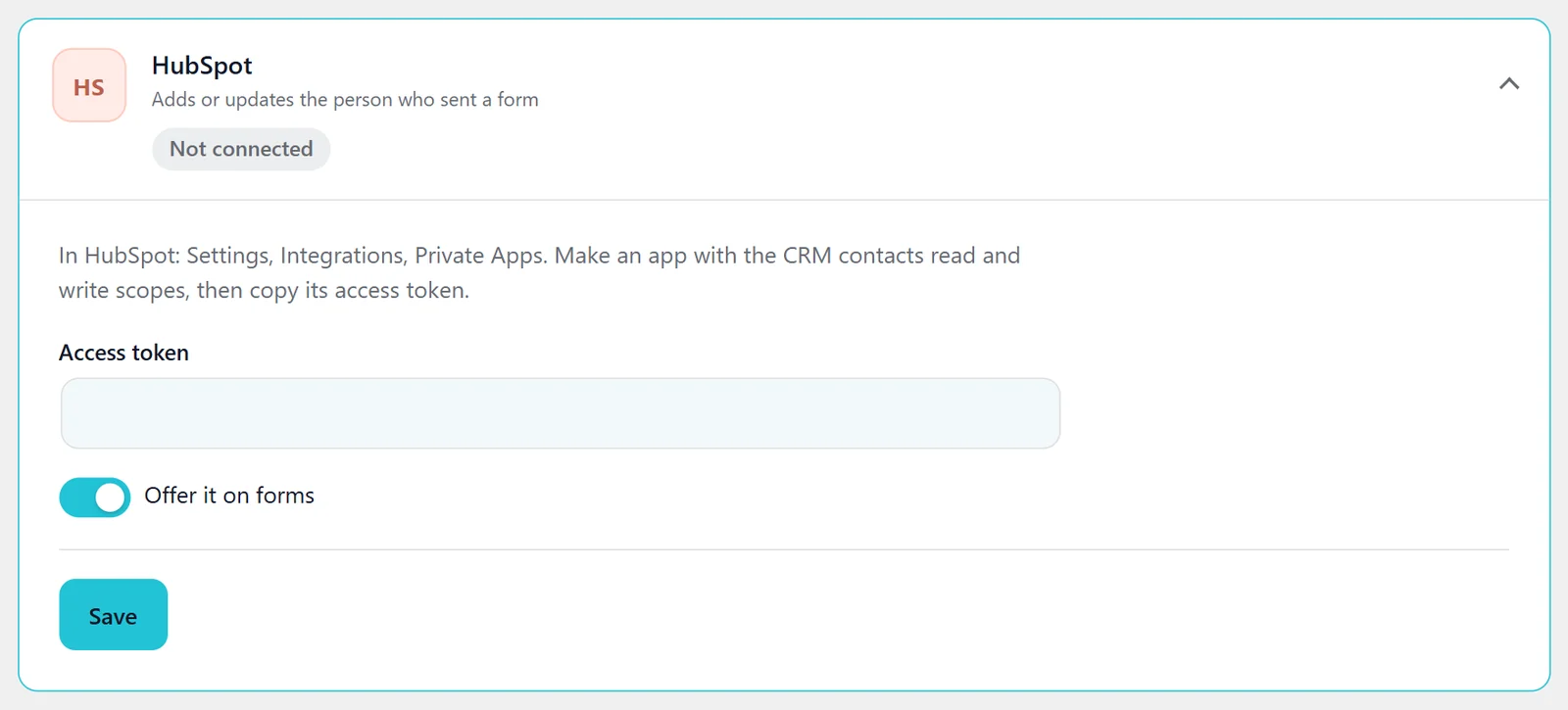
Offer it on forms switches a connected list off for every form without removing its key. Pick the list on each form’s Marketing tab.
HubSpot (an access token), Salesforce (a connected app, your login and security token), Pipedrive (an API token and your company address) and Zoho CRM (a Self Client’s refresh token, and your data center). Switch one on with a form’s CRM card.
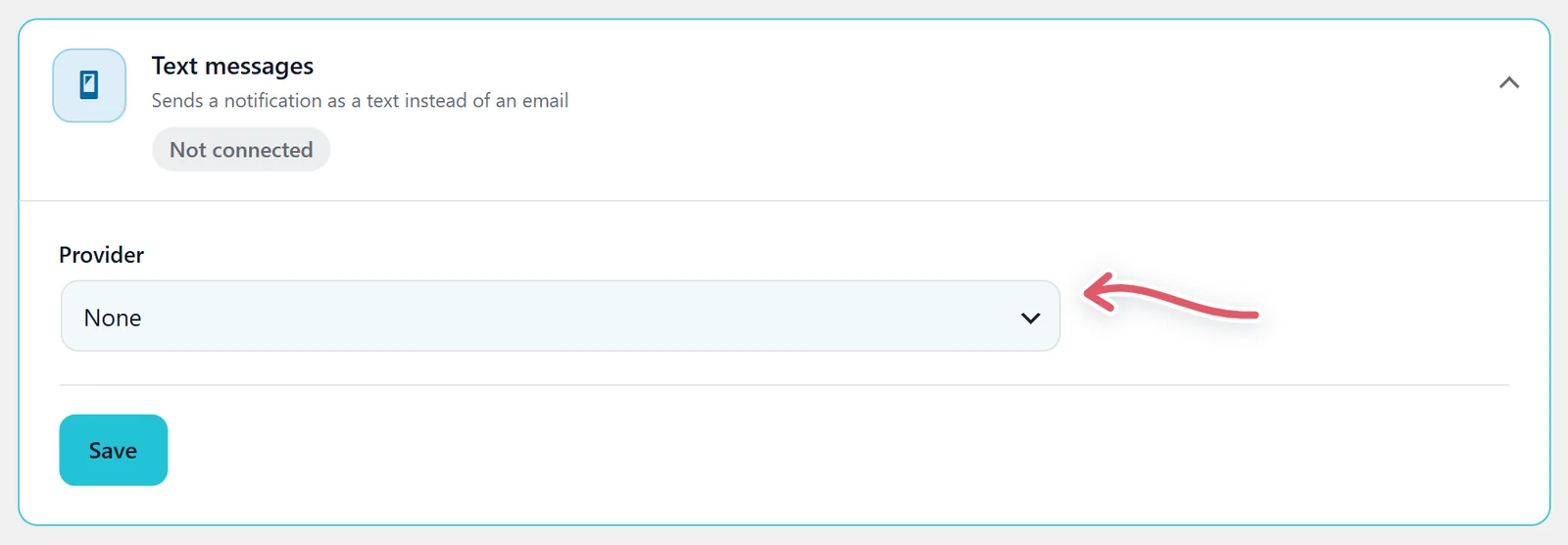
Pick a Provider: Twilio, ClickSend, Vonage, Plivo or MessageBird, with its keys and a sending number or name. Then set a notification to Send as a text. See Emails for each entry.
Demo mode records each text on this site instead of sending it, to try a form without paying for messages. With Pulse Bookings on the site, Echo can use the provider chosen there.
| Card | What it needs |
|---|---|
| 1. Google Drive | A Google Cloud OAuth client for a Web application, with the redirect address on the card, then Sign in. Echo only sees the files it makes. |
| 2. Dropbox | An app with App folder access, with the redirect address on the card, then Sign in. |
| 3. Google Calendar | The same kind of Google app as Drive (the same one works), then Sign in. |
| 4. Notion | An internal integration’s secret, with the integration added to each database a form should fill. |
| 5. Airtable | A personal access token with the data.records:write and schema.bases:read scopes. |
Then switch each on for a form on its Marketing tab.
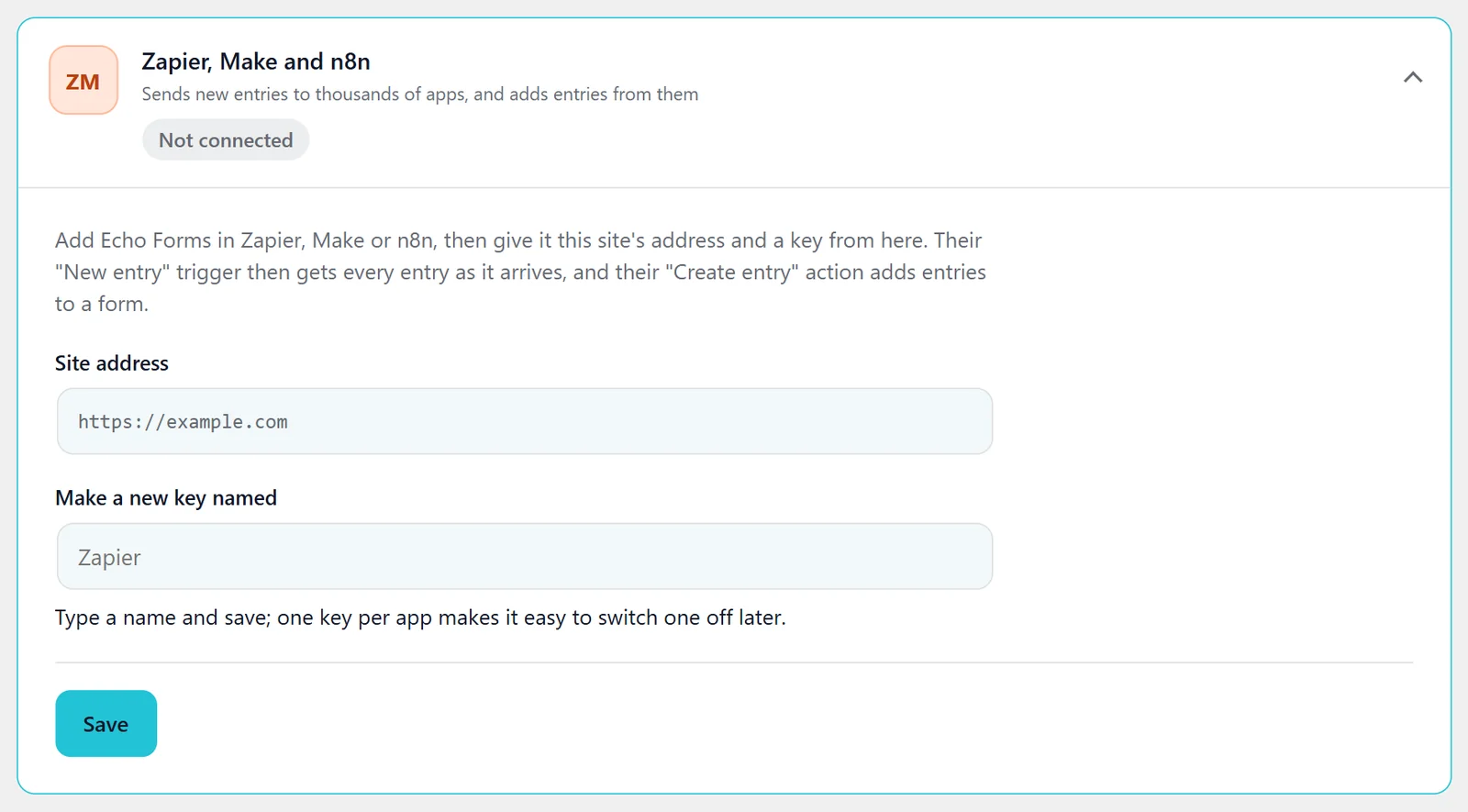
Keys for Zapier, Make and n8n. See Automation apps.
Pick the AI service 1 that builds forms from a description: Anthropic Claude, OpenAI or Google Gemini. Paste your own API key 2 and, if you like, a Model 3; leave the model empty to use a good one for building forms. Where to make a key 4 links to each service’s page for making one. Forms are built on your own account with the AI service, so you pay it directly for what you use: a form usually costs a cent or two.
Then describe a form in the New form dialog. See Start a form.
Support comes with Signature: in Echo Forms, open Help & feedback and tell us what you were doing, and the people who build it answer, seven days a week. Get Signature
Every field, logic and payments, with no limit on forms or entries. We email you the download and three setup steps.
Sending...
Check your inbox