
The Style tab sets how one form looks. A Live preview beside the settings shows every change as you make it. Nothing reaches the live form until you press Save form.
Designs
Twelve finished looks, part of Echo Forms Signature. One click styles the whole form: card, fields, labels, choices and button.
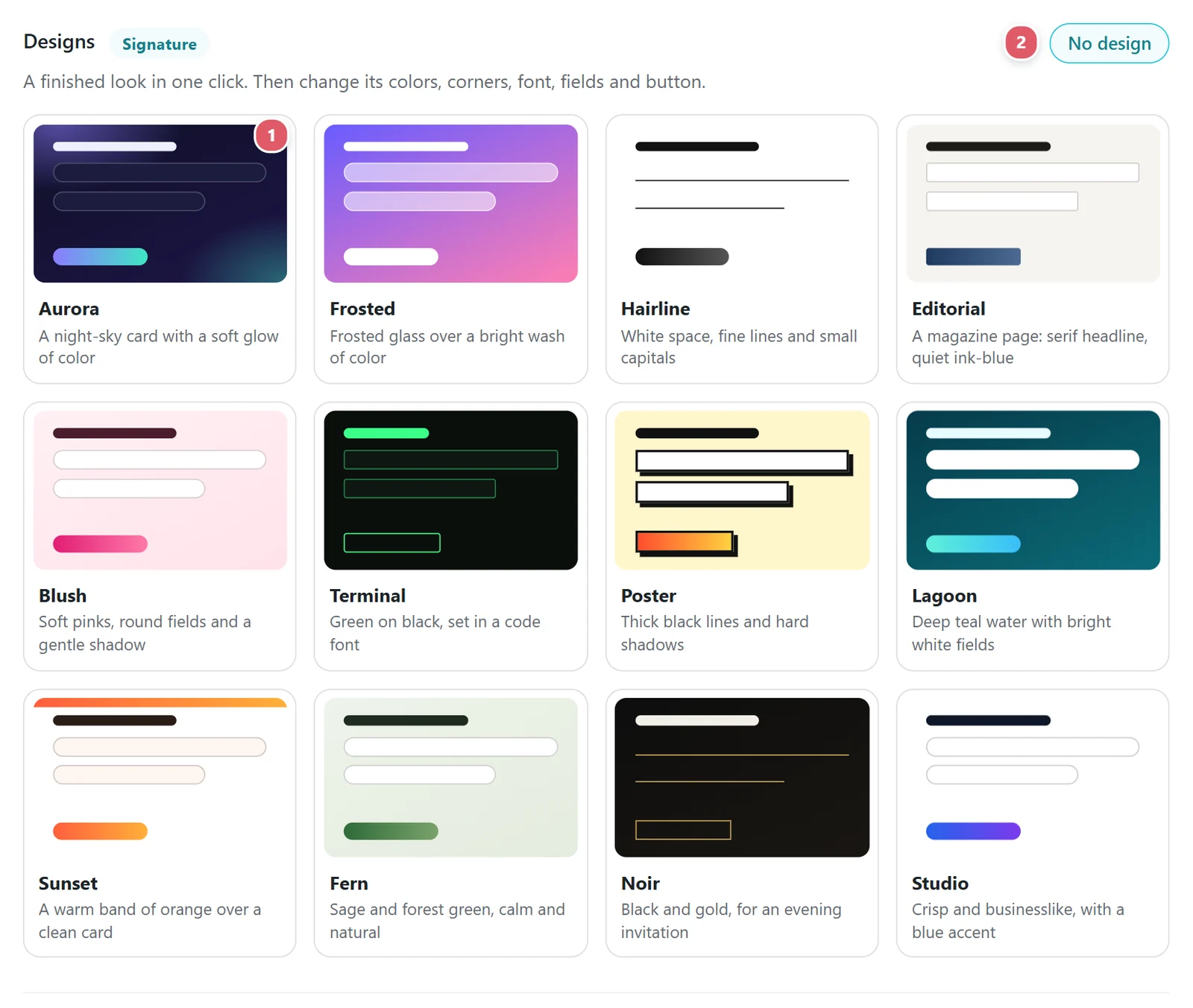
- Click a design 1. The Live preview wears it at once, and Make it yours opens below the designs so you can adjust it.
- Press Save form. The form looks this way wherever it is placed.
- To take a design off, press No design 2. The form goes back to the settings further down the tab.
| Design | What it looks like |
|---|---|
| Aurora | A night-sky card with two soft glows of color, filled fields and a gradient button. |
| Frosted | The form on a pane of frosted glass over a bright wash of color. |
| Hairline | White space, fine underlines, small capital labels and a round black button. |
| Editorial | A serif headline over a fine rule, labels in small capitals, a quiet ink-blue button. |
| Blush | Soft pinks, round fields and button, and a gentle pink shadow. |
| Terminal | Green on black in a code font, with a prompt before every label. |
| Poster | Thick black lines and hard shadows that press in when the button is clicked. |
| Lagoon | Deep teal water with bright white fields and a gradient button. |
| Sunset | A warm orange band across the top of a clean white card. |
| Fern | Sage and forest green with a serif headline. |
| Noir | Black and gold: gold underlines, spaced capitals and an outlined button. |
| Studio | A crisp white card with a fine border and a blue accent. |
A design comes first: its colors and shapes win over Themes and the Simple and Advanced settings. Sizes, alignment, the form’s width and its messages still come from those settings.
Without Signature the designs are still shown, so you can see them; clicking one tells you about Signature. If Signature is ever switched off, the form keeps its design and shows its plain style until Signature is back.
Make a design yours
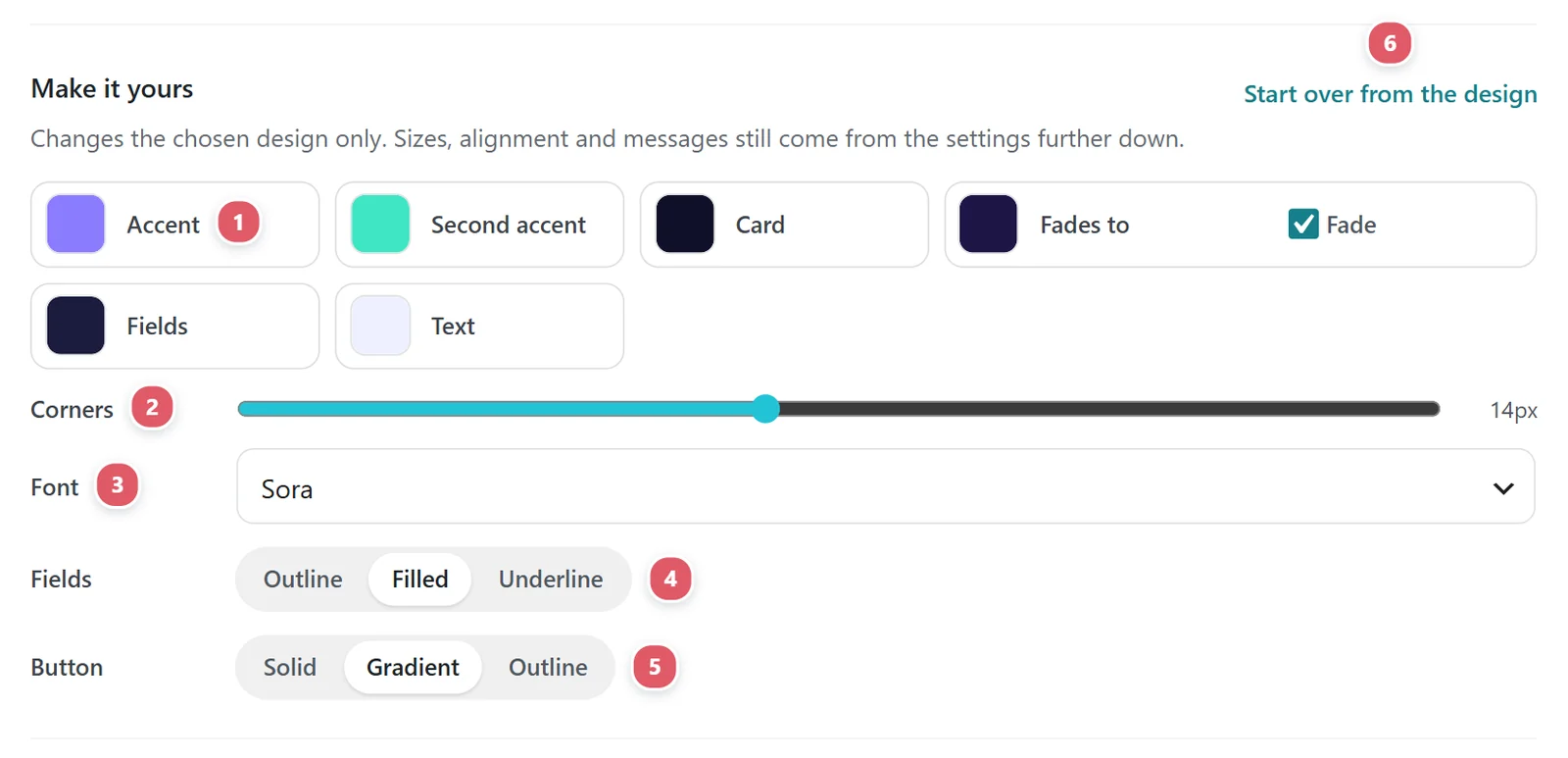
Change the chosen design’s colors, corners, font, fields and button. The preview follows every change.
| Setting | What it does |
|---|---|
| 1. Colors | Accent colors the button, the focus ring and ticked choices. Second accent is the other end of a gradient button and of some designs’ glows. Card is behind the form; tick Fade to blend it into Fades to. Fields fills the boxes people type in. Text colors the title, labels and help text. Text inside the fields and on the button turns dark or light by itself, so it can always be read. |
| 2. Corners | From square to very round, for the fields, the button and the card. |
| 3. Font | Twelve fonts to choose from. It is loaded with the form, so it shows the same on every computer. |
| 4. Fields | Outline draws a line round each box, Filled shades it, Underline keeps only a line beneath. |
| 5. Button | Solid in the accent, Gradient from the accent to the second accent, or Outline. |
| 6. Start over from the design | Puts back the chosen design’s own colors, corners, font, fields and button. |
Picking another design starts from that design’s own settings. To keep your changes, press Save form before trying another.
Themes
Picking one applies a whole coordinated set of colors and shapes at once. You can still fine-tune anything below afterward.
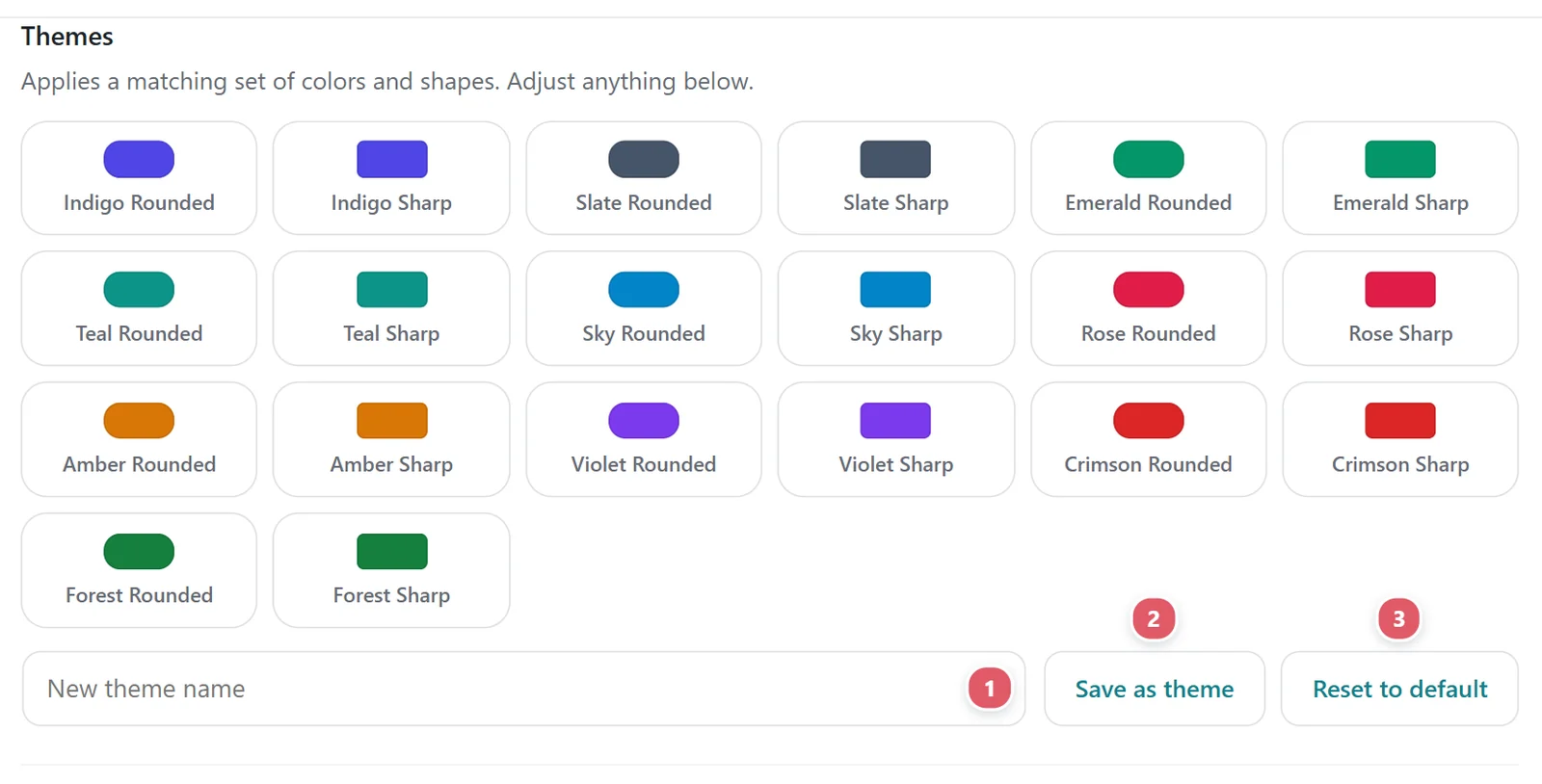
There are ten colors (Indigo, Slate, Emerald, Teal, Sky, Rose, Amber, Violet, Crimson and Forest), each with Rounded or Sharp corners.
Made a look you like? Type a New theme name 1 and press Save as theme 2. It joins the list for every form on the site. Reset to default 3 clears this form’s styling.
To start every new form in your own theme, choose it as the Default form theme under Site-wide settings. It only affects forms made after you choose it.
Simple
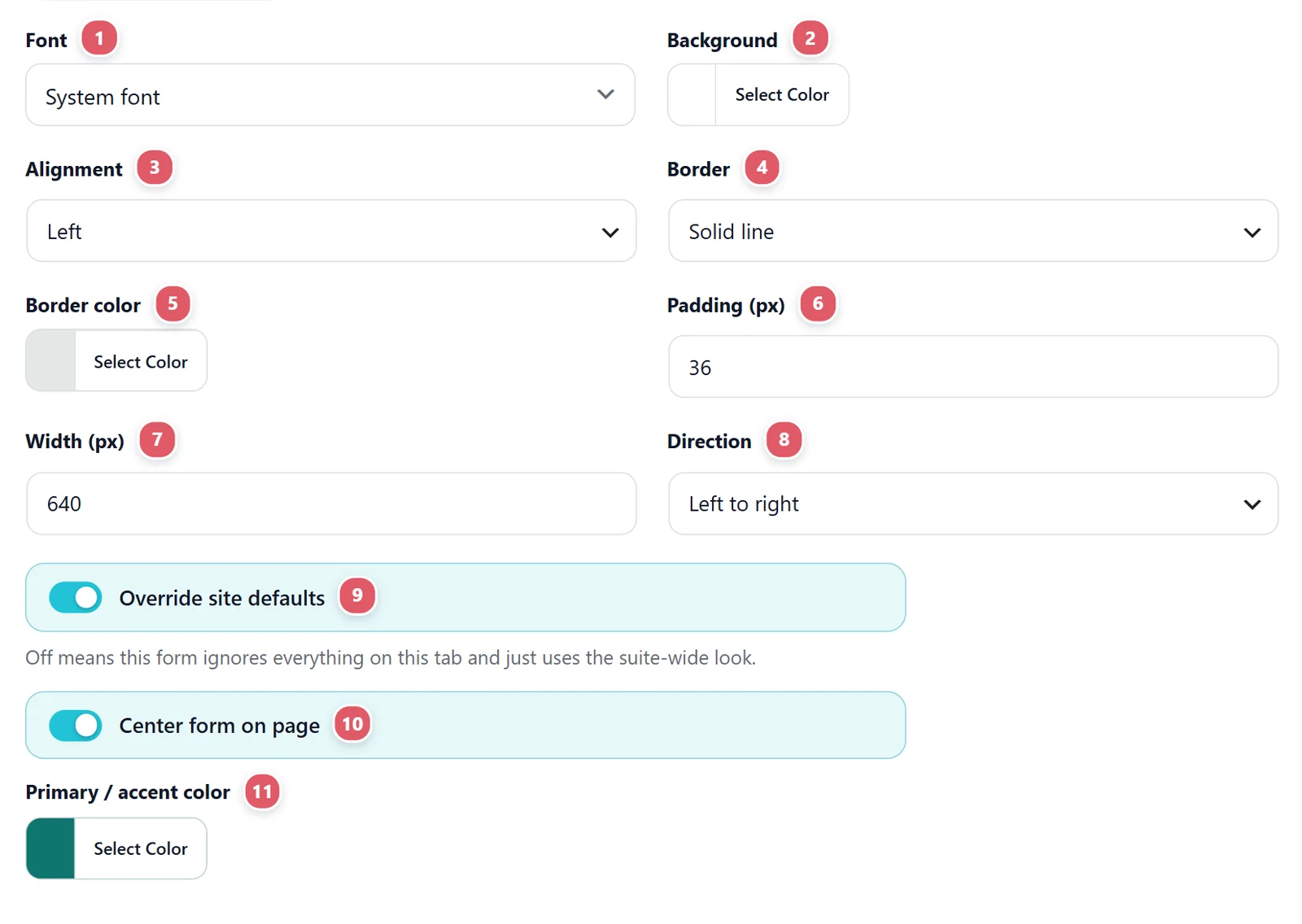
The Simple view covers the whole form at once:
| Setting | What it does |
|---|---|
| 1. Font | Inherit theme (recommended) uses your site’s font. Or pick System font, Serif, Monospace or Rounded. |
| 2. Background | Behind the fields. |
| 3. Alignment | Where the form sits in its space. |
| 4. Border | A line around the form: solid, dashed, dotted or none. |
| 5. Border color | The color of that line. |
| 6. Padding (px) | Room between the border and the fields. |
| 7. Width (px) | How wide the form can grow. |
| 8. Direction | Left to right, or right to left for languages that read that way. |
| 9. Override site defaults | Off means this form ignores everything on this tab and uses the shared look. |
| 10. Center form on page | Keeps a narrow form in the middle of a wide page. |
| 11. Primary / accent color | Buttons, focus rings and highlights. |
Advanced
Advanced holds everything Simple does not, one part of the form at a time:
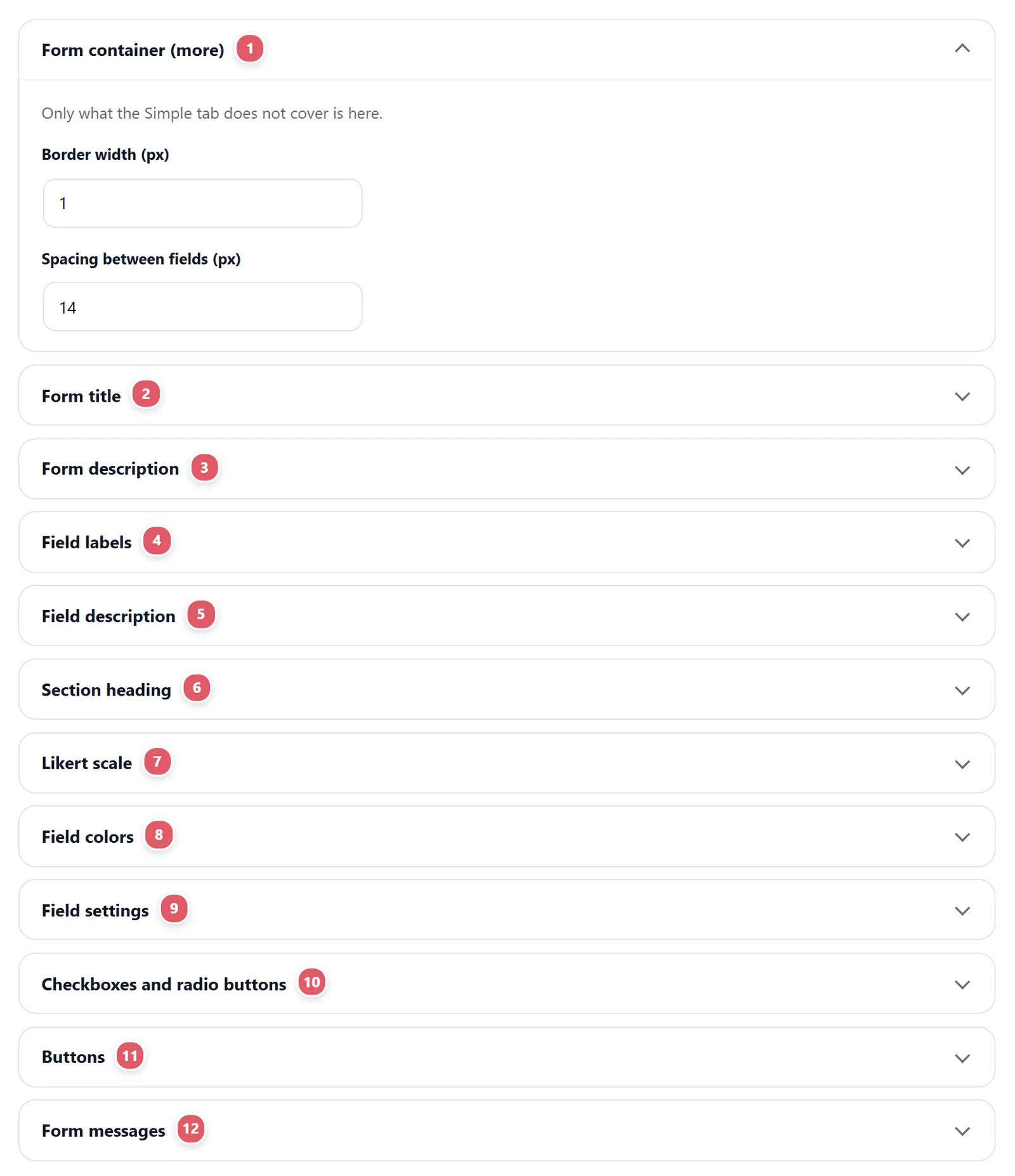
- Form container (more): Border width (px) and Spacing between fields (px).
- Form title: Show form title, with its color, size and alignment.
- Form description: a line under the title (Show description).
- Field labels: label color, size and weight, the Sublabel color (the small First name and Last name under a split Name field) and the Required indicator color.
- Field description: the color and size of each field’s own help line.
- Section heading: the look of the Section heading field.
- Likert scale: the Header background of a Likert grid’s top row.
- Field colors: background, text and border for a field in each state: Default, Active (being typed in), Read-only and Error.
- Field settings: Corner radius (px) and Field size.
- Checkboxes and radio buttons: their Default style, Border color, Selected color and Corner radius (px).
- Buttons: the submit button in its Default, Hover and Click states, and Lock Submit until complete.
- Form messages: the text color, background and alignment of the thank-you and error messages.
When your theme already styles forms
Some themes and page builders style every form field on the site. If they clash with Echo, switch on Turn off Echo styling under Site-wide settings. Every form then takes its look from your theme, and this tab stops applying.
For one small change this tab does not cover, add a few lines under Settings > General > Custom CSS. See General settings.
Support comes with Signature: in Echo Forms, open Help & feedback and tell us what you were doing, and the people who build it answer, seven days a week. Get Signature