
Quizzes come with Echo Forms Signature. While the add-on is off, a quiz form works as an ordinary form and shows its thank-you message; its scoring and results come back with the add-on.
A quiz turns a form into something people want to finish: they answer a few questions, and instead of a plain thank-you they get a result made for them. Use it to recommend a product or a plan, sort people into types, or test what they know.
Start from a quiz template
The quickest way in. New form > Quizzes has five, each with its questions, answer screens, loading screen and results already built:
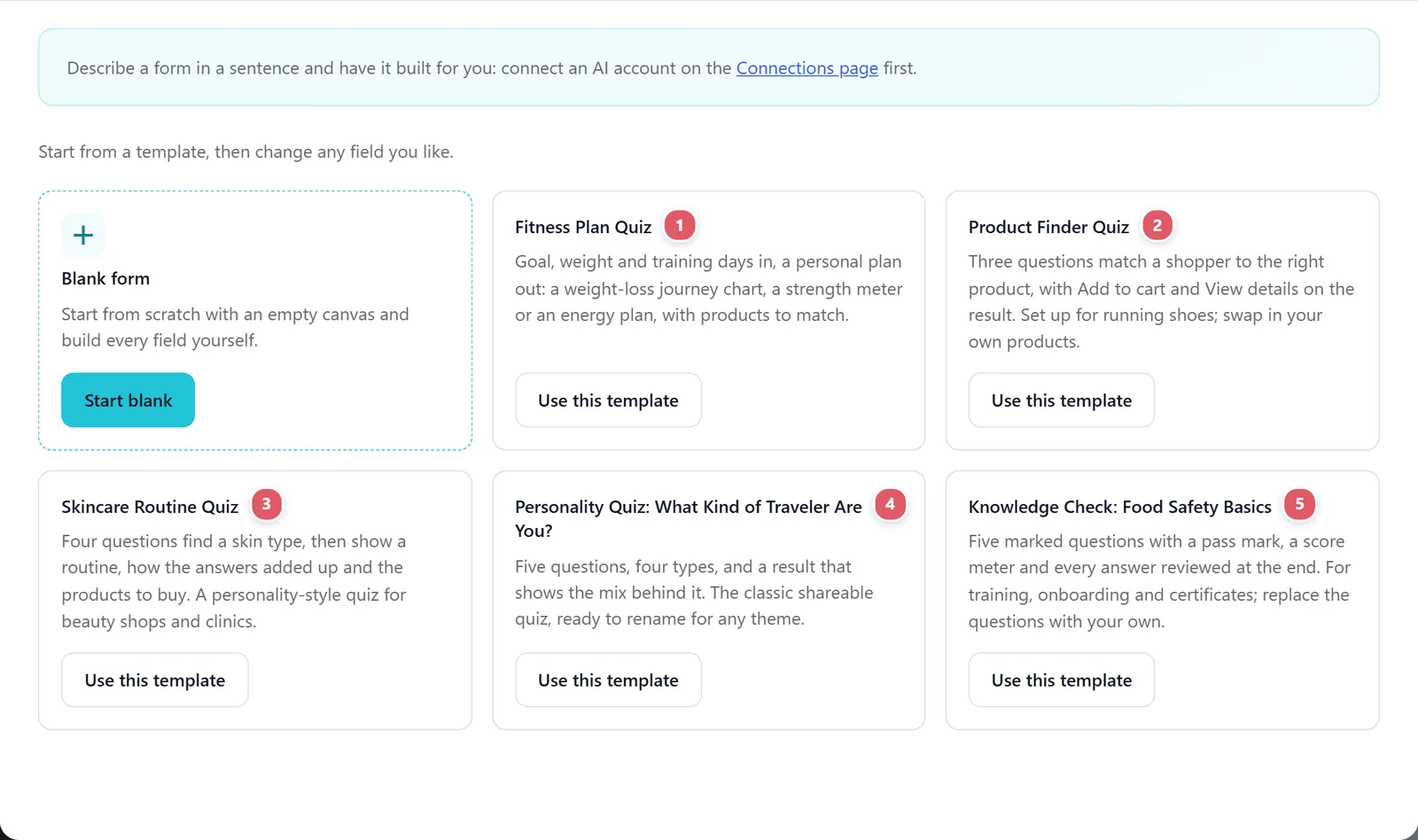
| Template | What it does |
|---|---|
| 1. Fitness Plan Quiz | Goal, weight and training days in; a plan out, with a journey chart, a meter and products to match. |
| 2. Product Finder Quiz | Three questions match a shopper to the right product, with Add to cart and View details. |
| 3. Skincare Routine Quiz | Finds a skin type, then shows a routine, how the answers added up and the products to buy. |
| 4. Personality Quiz: What Kind of Traveler Are You? | Five questions, four types, and the mix behind their result. |
| 5. Knowledge Check: Food Safety Basics | Five marked questions, a pass mark, a score meter and every answer reviewed with a note. |
Change the words, pictures and products to your own. See Start a form.
Make a form a quiz
Open the form’s Settings > Quiz tab and switch on Make this form a quiz. From now on, sending the form scores the answers and shows the result you design, in place of the thank-you message.

Pick how it scores
Then pick How it scores. It is the one big decision, because it decides what you set beside each answer and what results can test for. Here the skincare quiz uses Personality types.

| Kind | How it works | Good for |
|---|---|---|
| Points | Each answer is worth points and the total picks the result. | Plans and product finders. |
| Right or wrong | Mark the right answers; they see how many they got and whether they passed. | Tests, training and trivia. |
| Personality types | Each answer leans toward a type, and the type with the most wins. | “Which one are you?” |
Your quiz in four steps
Four steps sit across the top of the tab, and each one says how far along it is. Work through them from left to right and the quiz is ready.

- How it scores: the kind you picked.
- Score the answers: how many questions are scored, such as 2 of 3 questions scored.
- Results: how many results there are, or Some answers have no result when a score, a pass or a type has nowhere to go.
- Try it: opens the real quiz in test mode in a new tab, so you can answer it and see the result. Save first, so it shows your latest changes.
A step turns green with a tick when it is done, and amber when it needs you. Click any step to jump to its part of the tab.
Score the answers
Score the answers on the Quiz tab lists every question the quiz can score, a Multiple choice, Dropdown or Checkboxes question 1, with each of its answers 2 on its own row. You score them all here, in one place, without opening each question.

What each row asks for follows the kind you picked: a points box, a Right button, or a list of your types. It is the same setting as the box beside each answer on the Build tab, so change it in either place and the other follows. The pencil 3 opens that question on the Build tab, to change its words or add an answer.
A question whose answers come from your site (Choices from your site) changes on its own, so it cannot be scored. Until the form has a question to score, the sheet says so and offers to take you to the Build tab.
Points
Give each answer its points. When the form is sent, the points of every answer they chose are added up, and the total picks their result. For example, a Which plan suits you? quiz: Just me is 1 point, A small team is 3, A whole company is 5; a total of 8 or more shows the Business plan. A 0 to 10 rating counts as its number.
Right or wrong, and the pass mark
Press Right on each right answer, so it turns green. A question with more than one right answer needs all of them, and nothing else, to count. Then set the Pass mark on the Quiz tab, such as 70% right or more passes, and your results can test for They pass and They do not pass. Use it for staff training, a course check or a certificate.
Note after this question
On a right-or-wrong quiz, each question gets a Note after this question: a line that explains the right answer, such as Raw chicken must be stored below cooked food, so nothing can drip onto it. It is shown beside the question when a result’s Their answers block reviews what they got right and wrong, which turns a test into a lesson.
Personality types
Add your Types on the Quiz tab first, with Add a type: The Explorer, The Planner, The Relaxer. Then pick a type for each answer in the sheet. Each answer they choose adds to its type, and the type with the most wins. Points beside an answer make it count more; left blank, it counts once. Results test Their type is, so make one result per type.
A question hidden by its show or hide rule counts for nothing, whatever the kind.
Results
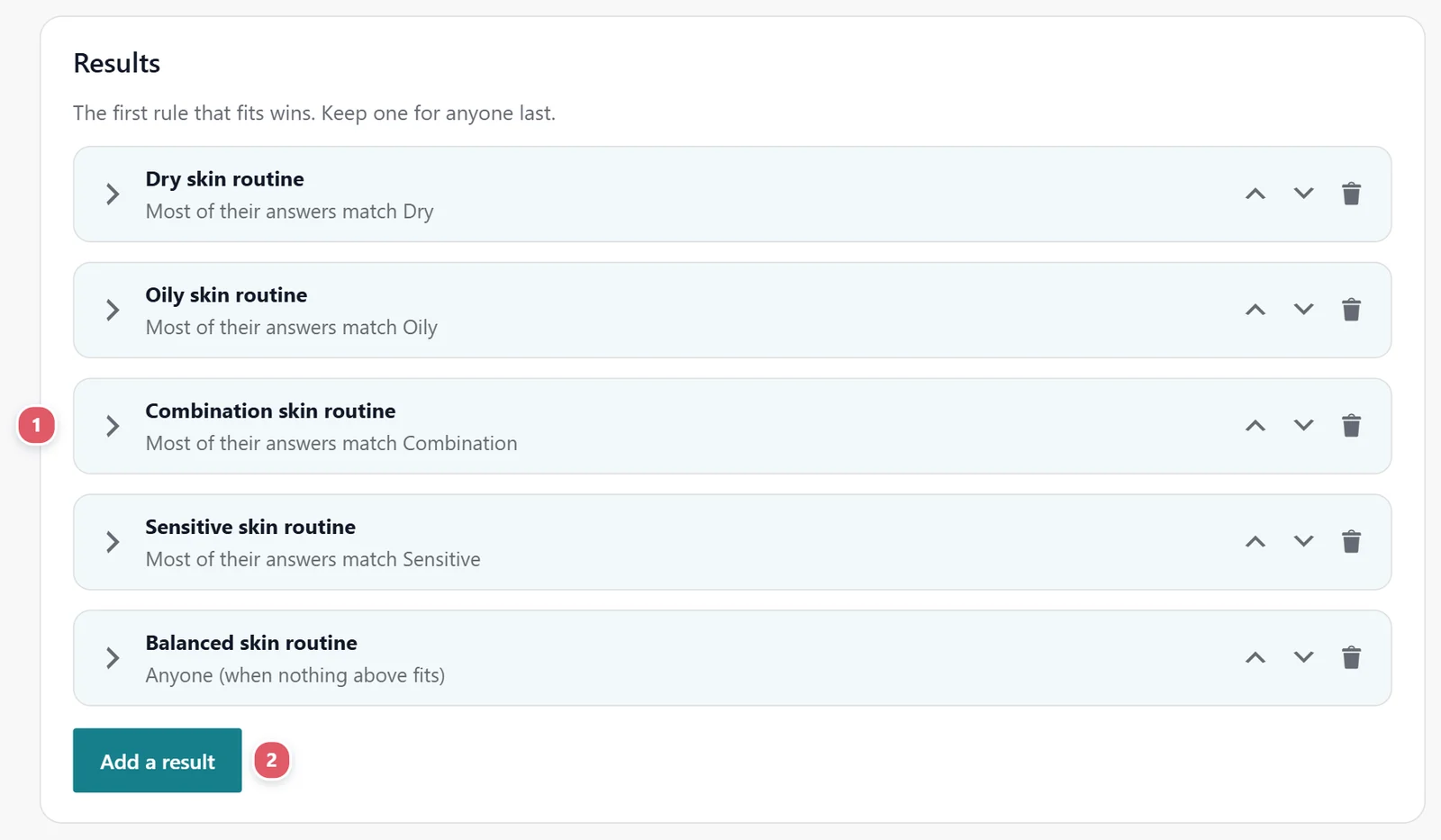
Each result 1 has a Result name and a rule under Show this result when:
| Rule | Shows it when |
|---|---|
| Their score is between | The total is inside the range. Leave one end empty for “or more” or “or less”. |
| Their percent right is between | For right-or-wrong quizzes. |
| They pass / They do not pass | Against the pass mark. |
| Their type is | For personality quizzes. |
| One of their answers | A question’s answer is, is not or contains something, or is empty or is not empty, such as a goal that is Lose weight. |
| Anyone (when nothing above fits) | Always. Keep one at the bottom. |
Checked from the top: the first result whose rule fits is the one they see. Use the arrows beside a result to move it earlier or later, and Add a result 2 for another.
Starter results
A quiz with no results yet offers Add starter results: a ready-made set for the kind you picked, each with a heading and a line of words for you to change, so you start from something that works rather than a blank page.
- Points: three results, Low score, Middle score and High score, splitting the real range of scores your answers allow into three, with a score meter. The lowest starts at or less and the highest at or more, so every score has somewhere to go.
- Right or wrong: You passed and Not quite, each saying how many they got right, with their answers reviewed underneath.
- Personality types: one result for each of your types, with the mix of types their answers leaned toward. Add the types first.
Then make them yours: rename them, change the words, add pictures, buttons or product picks.
What the results cover
Above your results, the tab shows what you are working with: Scores on this quiz run from 0 to 10 for a points quiz, worked out from the points you gave, or how many questions are marked and the pass mark for a right-or-wrong quiz.
Under it, an amber note appears for anything that would leave someone without a result:
- a run of scores no result covers, such as No result yet for a score of 7 to 10;
- no result for people who pass, or for people who do not;
- a personality type with no result of its own;
- a result for Anyone that is not at the bottom, so the results under it can never show.
Each note says what to add. Fix them all, or add one result for Anyone at the bottom to catch everyone else, and the Results step turns green.
Design what they see
Open a result. Under What this result shows, it is a stack of blocks 1: each has its own settings, arrows to move it and a button to remove it. What they see 2 beside it shows the result as visitors will, and changes as you type.

Add a block
Under the blocks, press a kind of block 1 to add one at the bottom of the result:

| Block | What it shows |
|---|---|
| Heading, Text | Words, with Insert an answer… to put in their name, the result’s name, their type, score or percent right, or any answer. |
| Picture | An icon, or a picture of your own with a description for screen readers. |
| Bullet list | Ticks, dots or numbers. |
| Big number | A figure such as 80% with a line under it: of people say the same. |
| Quote | A testimonial and who said it. |
| Divider | A thin line between parts. |
| Button | Button words and Where it goes, filled or outline. Send them to book, buy or read more. |
| Journey chart | From where they start to their goal over weeks, months or days, such as Your journey to {field:goal_weight} lb. |
| Meter | Their percent right or matched, their score, or an answer, on a scale. |
| Type breakdown | How much of each type their answers came to: Your mix. |
| Their answers | Each marked question with their answer, the right one, and your note on it. |
| Product picks | Products from your WooCommerce shop, with Add to cart and View details, or cards you write yourself. |
Look
Look 2 styles the result (or an answer screen) as a whole: the background, text and accent colors (or the form’s own, so it matches), centered or left lined up, the size of pictures, a raised card or a flat panel, and how round its corners are. Every block inside follows it, so set it once per result.
Screens between questions
Two items in the field list’s Layout group make a quiz feel like an experience:

Answer screen
An Answer screen is a step between questions, designed from the same blocks as a result. It makes a quiz feel like a conversation instead of a test: right after someone answers What is your biggest skin worry? with Dryness, a screen says You are not alone: 6 in 10 people say the same, with a picture, then they carry on.
Choose when it shows under Show this screen: Every time, or Only after a certain answer, then pick the question, the test (is, is not, contains…) and the answer. Put it right after the question it reacts to. Its Button words move them on, such as Next question.
Loading screen
A Loading screen is a short, deliberate pause before a result, which makes the result feel worked out for them rather than instant:
- What it says: the line at the top, such as Building your fitness plan…
- Steps that tick off, one per line: Looking at your answers, Matching your goals, Building your plan. They tick off one by one.
- Runs for: how many seconds it lasts, 3 to 6 feels right.
- Look: a Ring or a Bar, in the Color you pick.
- Then: Go to the next step, or Show the result, which sends the form. Put a loading screen that shows the result after every question you need answered.
It can show every time, or only after a certain answer, the same way as an answer screen.
Quiz results in emails and entries
A quiz form’s Insert merge tag list gains Quiz score and Quiz result, plus Quiz: percent right, Quiz: right answers and Quiz: questions marked for right-or-wrong quizzes, or Quiz: their type for personality quizzes. Send each person their result by email, or tell yourself who scored what.

Each entry shows a Quiz card with the result, score, type, right answers and whether they passed. On Survey results, Quiz results counts how many people got each result.
Support comes with Signature: in Echo Forms, open Help & feedback and tell us what you were doing, and the people who build it answer, seven days a week. Get Signature